> ## Documentation Index
> Fetch the complete documentation index at: https://docs.elementary-data.com/llms.txt
> Use this file to discover all available pages before exploring further.
# Incidents Digest
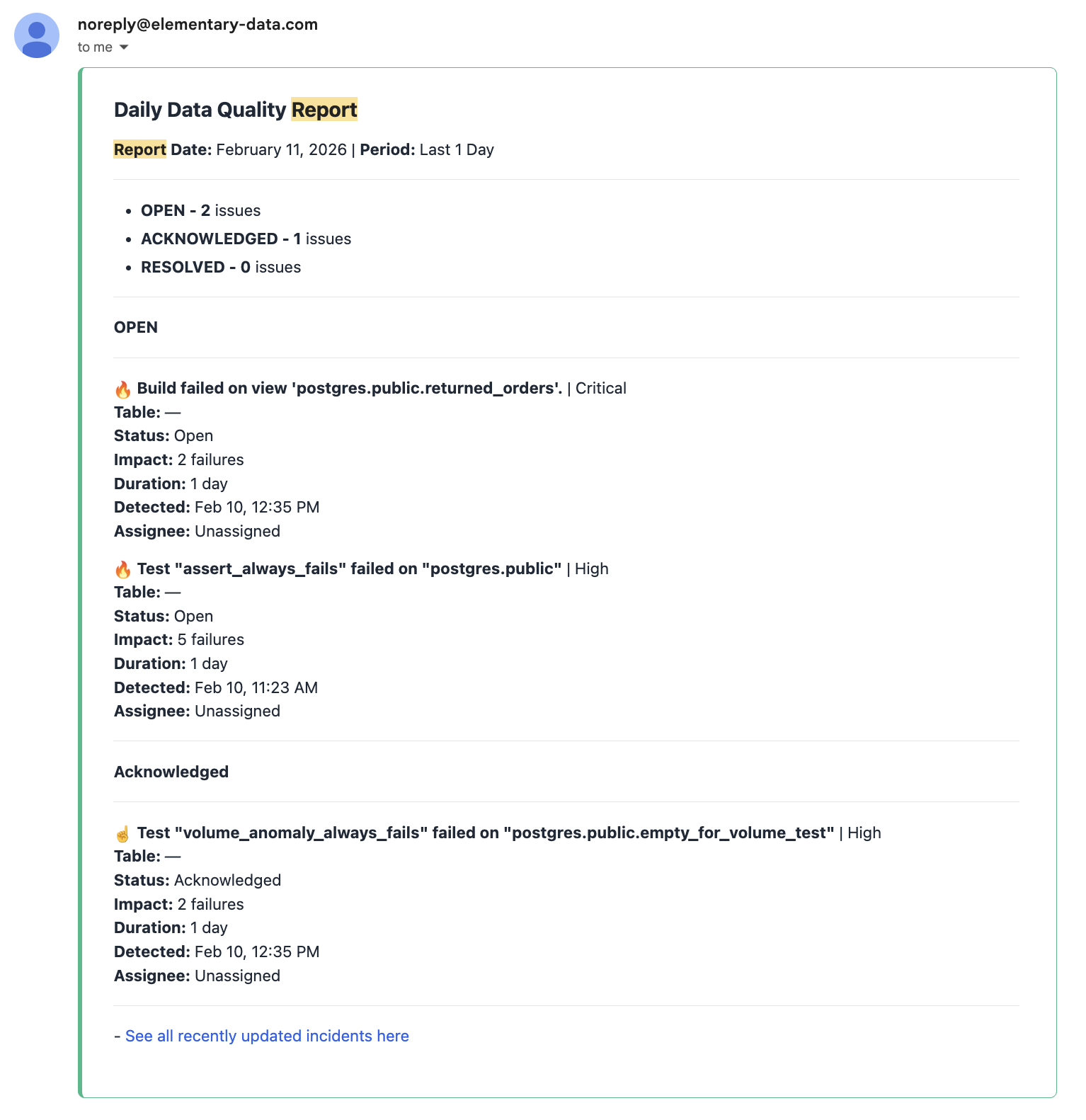
**Incidents Digest** lets you send a scheduled summary of incidents to your team in addition to real-time alerts. Your team receives a consolidated digest on a daily or weekly cadence covering all relevant incidents in that period.
This is useful for reducing noise, providing management-level visibility, or keeping stakeholders informed without overwhelming them with individual alerts.
 ## How it works
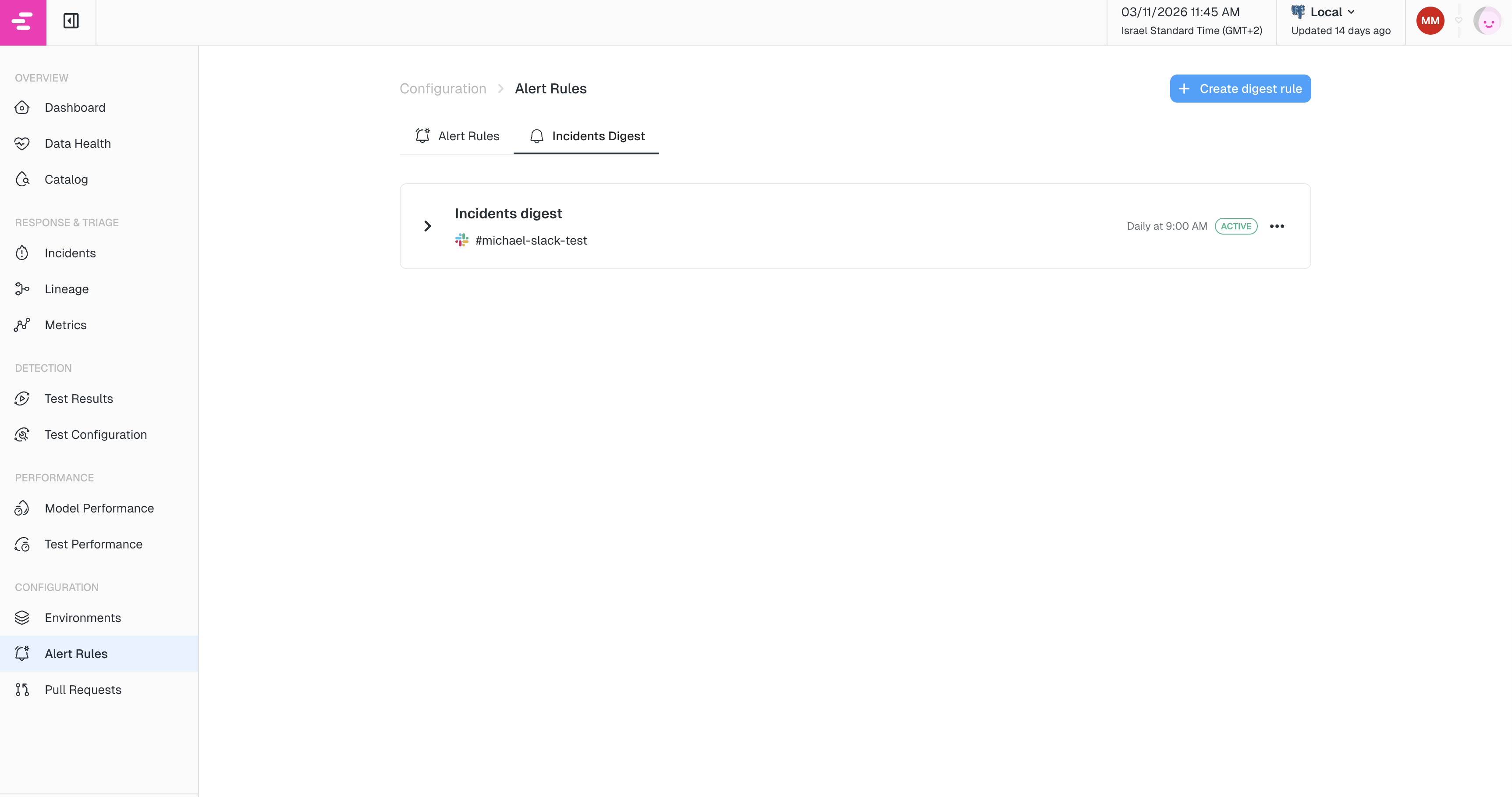
Digest rules are configured under **Alert Rules → Incidents Digest** tab. Each rule defines:
* **When** to send the digest (cadence: daily or weekly, at a specific hour)
* **What** incidents to include (filters by tag, owner, status, model, or category)
* **Where** to send it (one or more destinations such as a Slack channel or email)
At the scheduled time, Elementary collects all incidents that match the rule's filters since the last digest was sent, and delivers them as a single message.
## How it works
Digest rules are configured under **Alert Rules → Incidents Digest** tab. Each rule defines:
* **When** to send the digest (cadence: daily or weekly, at a specific hour)
* **What** incidents to include (filters by tag, owner, status, model, or category)
* **Where** to send it (one or more destinations such as a Slack channel or email)
At the scheduled time, Elementary collects all incidents that match the rule's filters since the last digest was sent, and delivers them as a single message.
 ## Creating a digest rule
Navigate to **Alert Rules** in the left sidebar and select the **Incidents Digest** tab. Click **Create digest rule** to open the configuration drawer.
The filters, categories, and destinations are configured the same way as in [Alert Rules](/cloud/features/alerts-and-incidents/alert-rules). The one addition unique to digest rules is **cadence**.
### Cadence
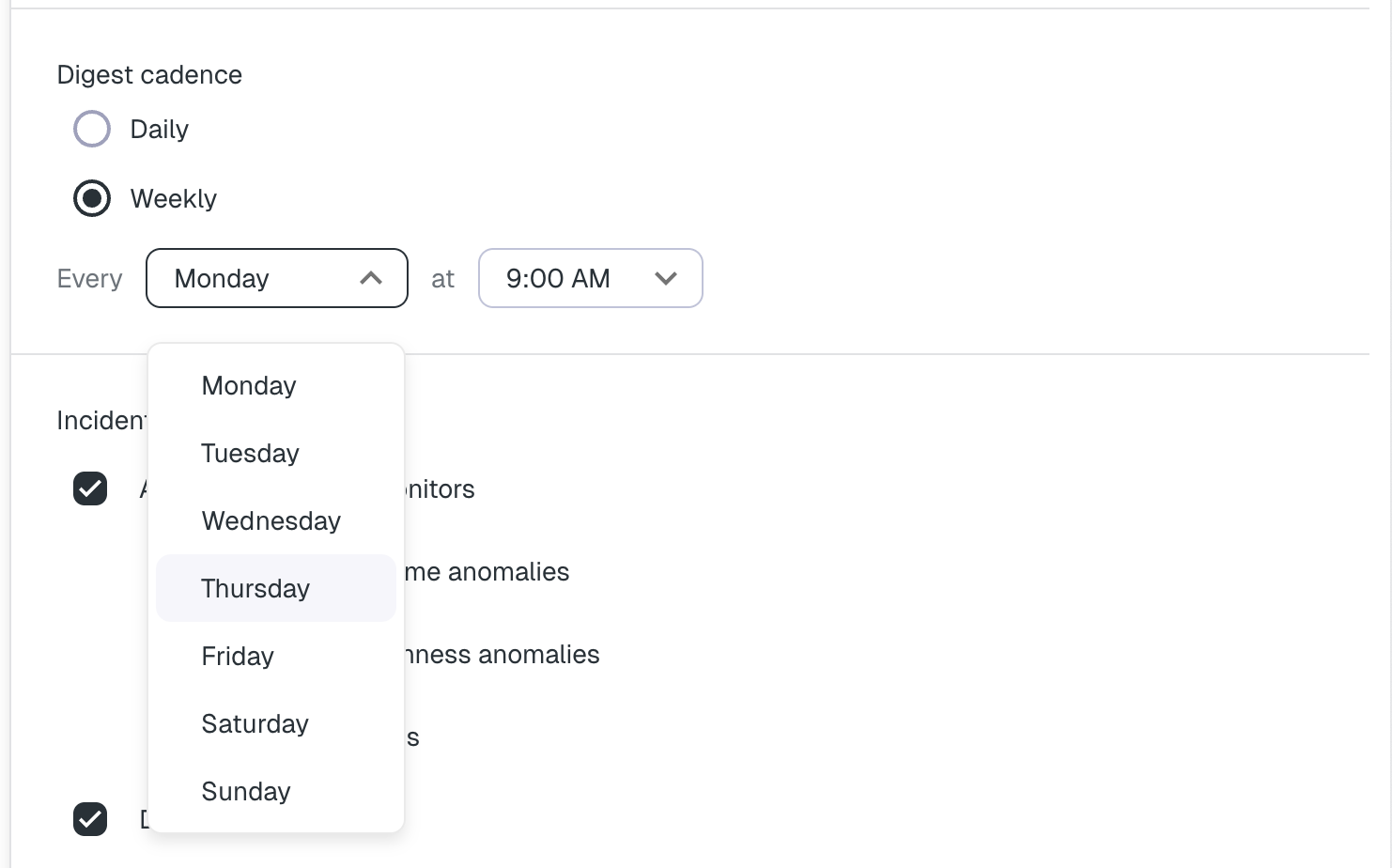
Choose how often the digest should be sent:
* **Daily** — sent once a day at the hour you choose.
* **Weekly** — sent once a week on the day and at the hour you choose.
The time is in UTC.
## Creating a digest rule
Navigate to **Alert Rules** in the left sidebar and select the **Incidents Digest** tab. Click **Create digest rule** to open the configuration drawer.
The filters, categories, and destinations are configured the same way as in [Alert Rules](/cloud/features/alerts-and-incidents/alert-rules). The one addition unique to digest rules is **cadence**.
### Cadence
Choose how often the digest should be sent:
* **Daily** — sent once a day at the hour you choose.
* **Weekly** — sent once a week on the day and at the hour you choose.
The time is in UTC.
 ## Managing digest rules
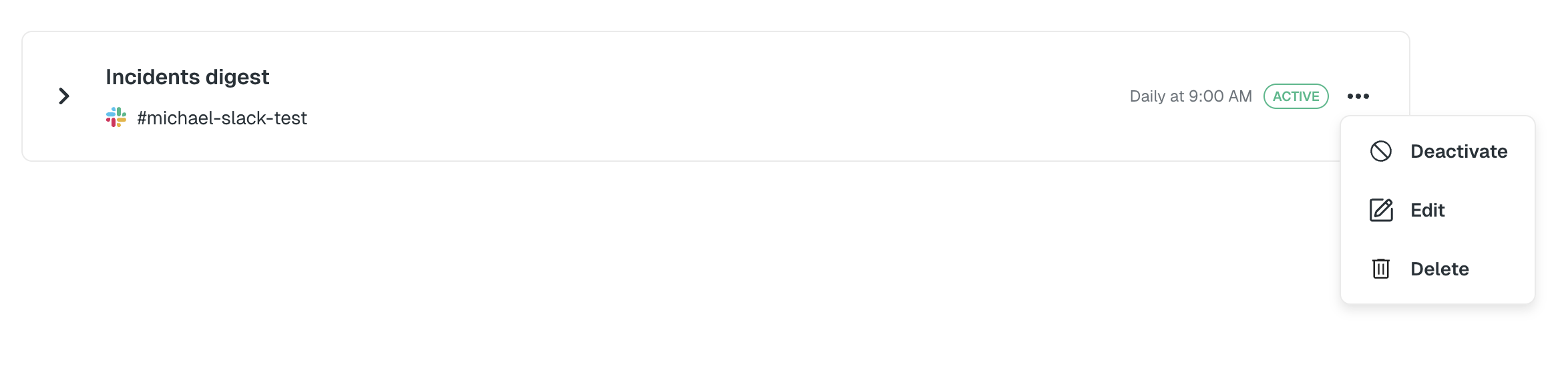
Once created, digest rules appear as cards in the **Incidents Digest** tab. From each card you can:
* **Edit** the rule to change any configuration.
* **Activate / Deactivate** the rule without deleting it.
* **Delete** the rule.
## Managing digest rules
Once created, digest rules appear as cards in the **Incidents Digest** tab. From each card you can:
* **Edit** the rule to change any configuration.
* **Activate / Deactivate** the rule without deleting it.
* **Delete** the rule.
 ## Relationship with alert rules
Digest rules are independent of [Alert Rules](/cloud/features/alerts-and-incidents/alert-rules). You can have both real-time alert rules and digest rules active at the same time — they are evaluated separately. A common pattern is to use real-time alert rules for critical on-call channels and digest rules for broader team summaries.
## Relationship with alert rules
Digest rules are independent of [Alert Rules](/cloud/features/alerts-and-incidents/alert-rules). You can have both real-time alert rules and digest rules active at the same time — they are evaluated separately. A common pattern is to use real-time alert rules for critical on-call channels and digest rules for broader team summaries.