> ## Documentation Index
> Fetch the complete documentation index at: https://docs.elementary-data.com/llms.txt
> Use this file to discover all available pages before exploring further.
# Incidents
Every failure or warning detected by Elementary automatically opens an incident. Incidents give your team a single place to track what's broken, who's on it, and what's happened since the issue started.
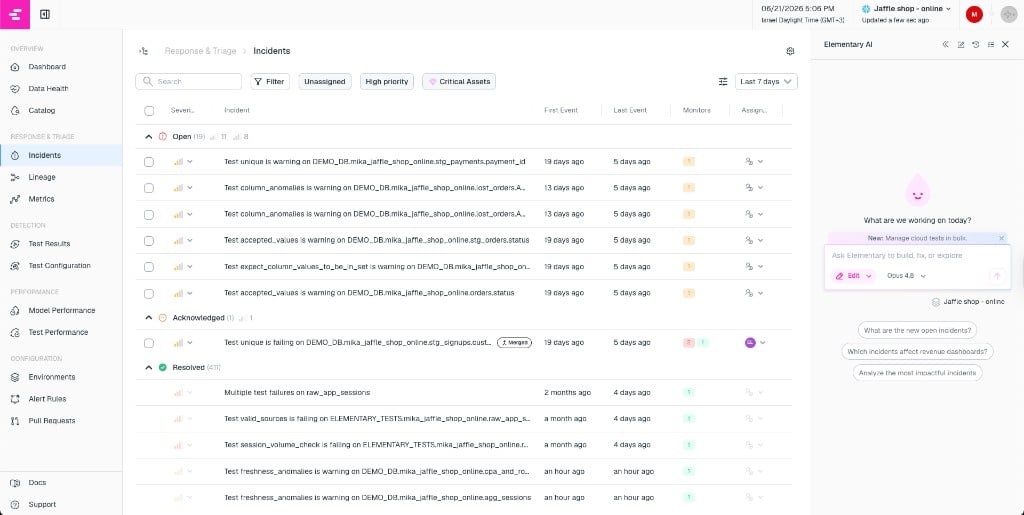 ## How incidents are created
When a test or monitor fails, Elementary automatically opens a new incident for it. If [auto-merge rules](/cloud/features/alerts-and-incidents/incident-merging#auto-merge-rules) are enabled, related failures may be grouped into a single incident automatically instead of creating separate ones.
Incidents can also be [merged manually or by the AI agent](/cloud/features/alerts-and-incidents/incident-merging) after they are created.
## Incident properties
Each incident has the following properties:
* **Title** — auto-generated from the failing monitor. Can be edited manually.
* **Status** — `Open` by default. Can be changed to `Acknowledged`, then to `Resolved`. Resolving an incident closes it permanently.
* **Severity** — Low, Normal, High, or Critical. Model errors default to Critical, test failures to High, warnings to Normal.
* **Assignee** — assign to any team member. They will be notified.
* **Summary** — free-text field to capture context or notes about the incident.
* **Tickets** — link to Jira or other ticketing integrations for tracking.
Incident severity is used to prioritize response — it is not the same as dbt test severity.
## How incidents are resolved
An incident is resolved in one of two ways:
* **Automatically** — when all monitors in the incident pass again, Elementary resolves the incident.
* **Manually** — a user sets the status to `Resolved` from the incidents page or from a Slack alert action.
## Incident detail
Clicking an incident opens a detail drawer with three tabs:
* **Lineage** — interactive upstream and downstream lineage graph for all assets in the incident.
* **Monitors** — cards for each monitor in the incident, showing test name, asset, status, and owners. From here you can [split monitors into separate incidents](/cloud/features/alerts-and-incidents/incident-merging#splitting-incidents-undo-a-merge) if needed.
* **Timeline** — chronological history of all events: status changes, alerts sent, monitors added or removed, tickets linked, and more.
The detail drawer also shows the incident's metadata (assignee, severity, status), linked tickets, and a summary field.
## Triage with the AI Agent
From any incident, click **Investigate with AI** to trigger the [Triage & Resolution Agent](/cloud/ai-agents/triage-resolution-agent). It inspects code changes, execution history, and lineage to surface the root cause and propose a fix. The agent can also identify related incidents and [suggest merging them](/cloud/features/alerts-and-incidents/incident-merging#ai-agent-assisted-merge).
## How incidents are created
When a test or monitor fails, Elementary automatically opens a new incident for it. If [auto-merge rules](/cloud/features/alerts-and-incidents/incident-merging#auto-merge-rules) are enabled, related failures may be grouped into a single incident automatically instead of creating separate ones.
Incidents can also be [merged manually or by the AI agent](/cloud/features/alerts-and-incidents/incident-merging) after they are created.
## Incident properties
Each incident has the following properties:
* **Title** — auto-generated from the failing monitor. Can be edited manually.
* **Status** — `Open` by default. Can be changed to `Acknowledged`, then to `Resolved`. Resolving an incident closes it permanently.
* **Severity** — Low, Normal, High, or Critical. Model errors default to Critical, test failures to High, warnings to Normal.
* **Assignee** — assign to any team member. They will be notified.
* **Summary** — free-text field to capture context or notes about the incident.
* **Tickets** — link to Jira or other ticketing integrations for tracking.
Incident severity is used to prioritize response — it is not the same as dbt test severity.
## How incidents are resolved
An incident is resolved in one of two ways:
* **Automatically** — when all monitors in the incident pass again, Elementary resolves the incident.
* **Manually** — a user sets the status to `Resolved` from the incidents page or from a Slack alert action.
## Incident detail
Clicking an incident opens a detail drawer with three tabs:
* **Lineage** — interactive upstream and downstream lineage graph for all assets in the incident.
* **Monitors** — cards for each monitor in the incident, showing test name, asset, status, and owners. From here you can [split monitors into separate incidents](/cloud/features/alerts-and-incidents/incident-merging#splitting-incidents-undo-a-merge) if needed.
* **Timeline** — chronological history of all events: status changes, alerts sent, monitors added or removed, tickets linked, and more.
The detail drawer also shows the incident's metadata (assignee, severity, status), linked tickets, and a summary field.
## Triage with the AI Agent
From any incident, click **Investigate with AI** to trigger the [Triage & Resolution Agent](/cloud/ai-agents/triage-resolution-agent). It inspects code changes, execution history, and lineage to surface the root cause and propose a fix. The agent can also identify related incidents and [suggest merging them](/cloud/features/alerts-and-incidents/incident-merging#ai-agent-assisted-merge).