> ## Documentation Index
> Fetch the complete documentation index at: https://docs.elementary-data.com/llms.txt
> Use this file to discover all available pages before exploring further.
# Logs
The **Logs** feature allows workspace admins to track and export both user actions and system-level events across the platform. This includes user configuration changes, data synchronization events, and alert deliveries.
This feature provides visibility into workspace activity and helps support audit readiness, team coordination, operational monitoring, and troubleshooting.
## Log Types
* **[User Activity Logs](/cloud/features/collaboration-and-communication/audit_logs/user-activity-logs)** - Track changes made by users across the system
* **[System Logs](/cloud/features/collaboration-and-communication/audit_logs/system-logs)** - Track system-level events and operations
## How to Access Logs
Once enabled for your account, access the logs:
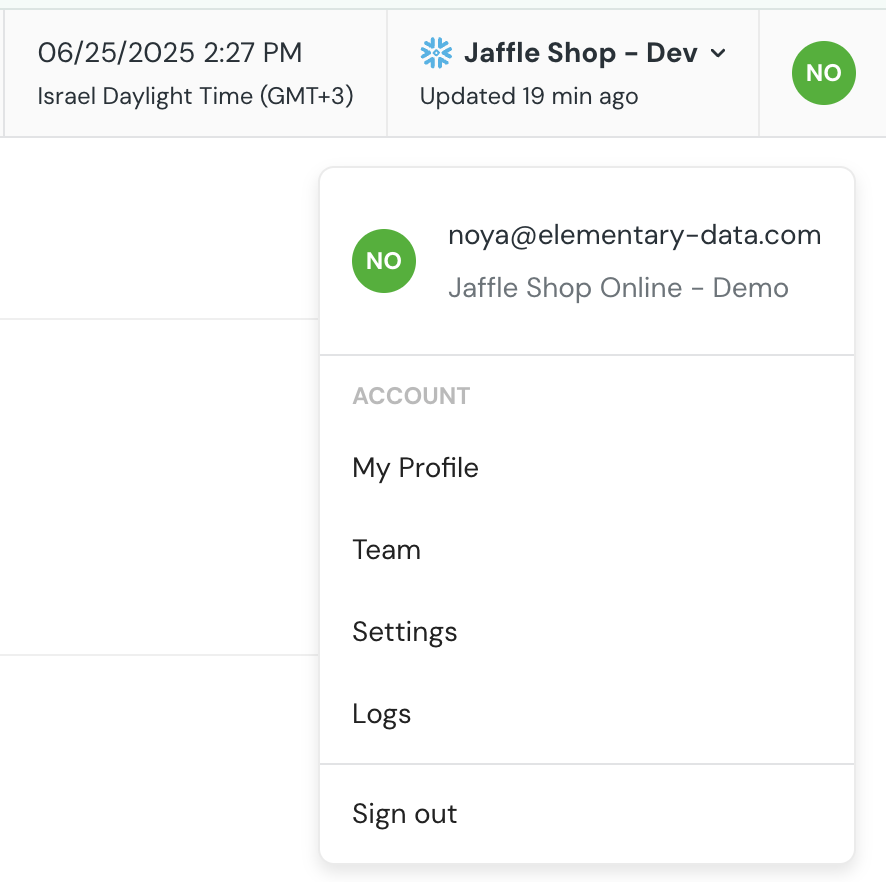
1. Click on your **account name** in the top-right corner of the UI
2. Open the dropdown menu
3. Select **Logs**
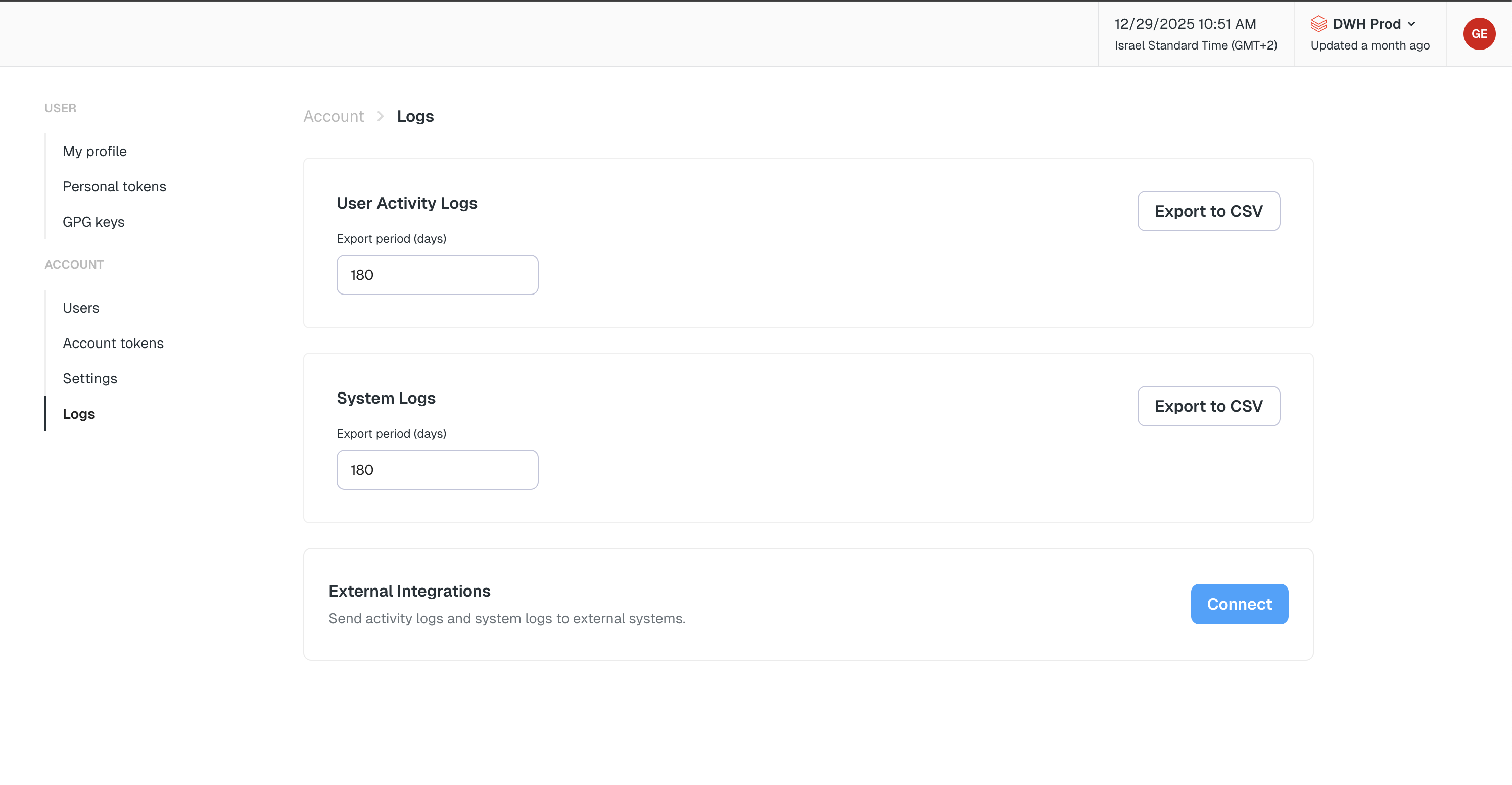
4. Choose **User Activity Logs** or **System Logs** from the log type selector
5. Select the number of days to look back
6. Click **Export** to download the log as a **CSV file**
You can open the CSV in any spreadsheet tool to review and filter the activity as needed.
## Stream Logs to External Services
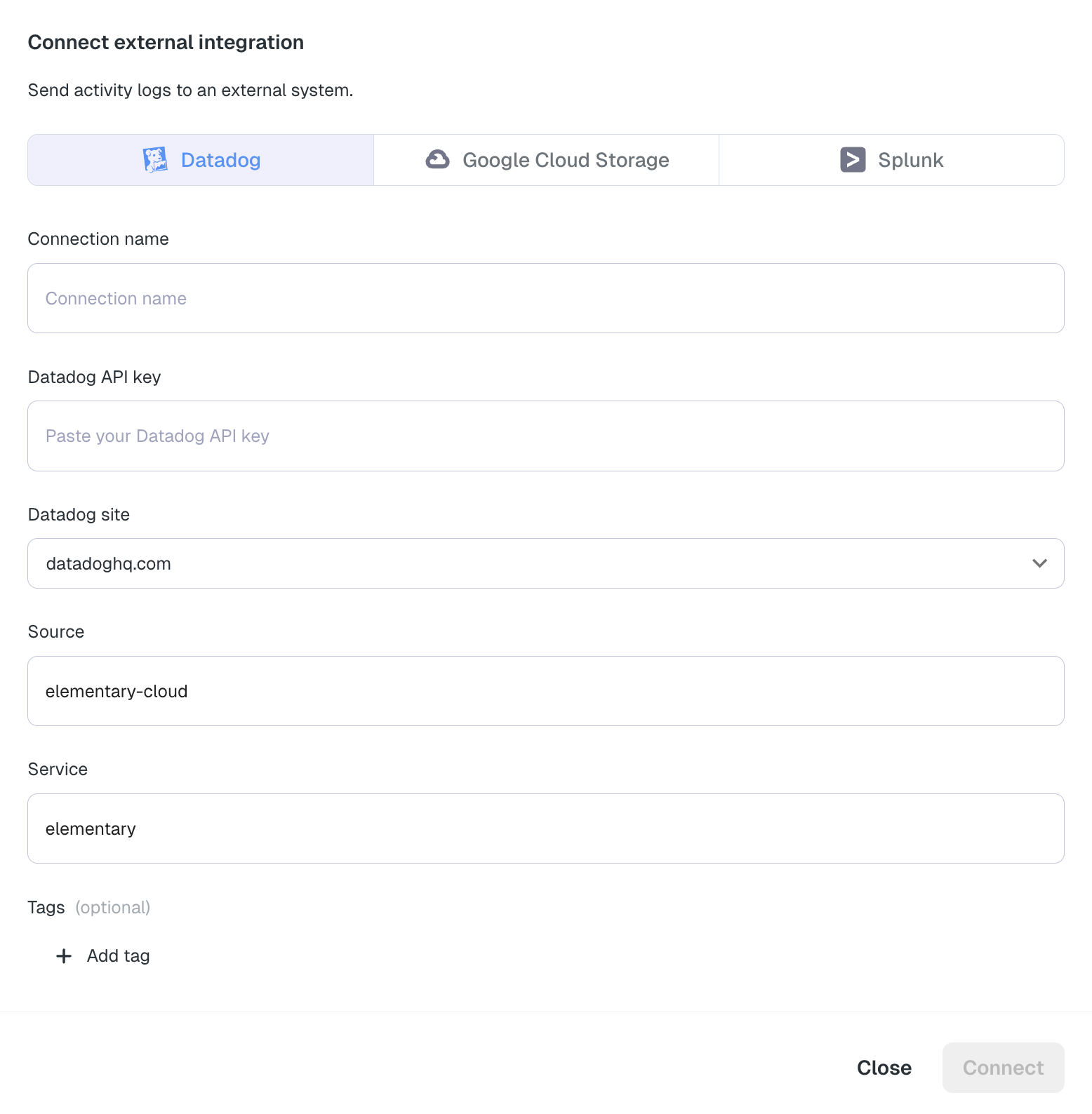
In addition to exporting logs as CSV files, you can stream logs in real-time to external log management services for centralized monitoring, analysis, and long-term storage.
### Available Integrations
* **[Datadog](/cloud/integrations/log-streaming/datadog)** - Stream logs to Datadog for centralized log management, monitoring, and alerting
* **[Splunk](/cloud/integrations/log-streaming/splunk)** - Stream logs to Splunk via HTTP Event Collector (HEC) for centralized log management and analysis
* **[Google Cloud Storage (GCS)](/cloud/integrations/log-streaming/gcs)** - Stream logs to GCS buckets for long-term storage and integration with BigQuery and other Google Cloud services
Configure log streaming from the Logs page by clicking the **Connect** icon, then select your preferred destination.
### Log Scope
Each integration can be configured to receive a subset of logs:
* **All logs** — account-level events plus every environment.
* **Account-level only** — only events that aren't tied to a specific environment (e.g. user logins, role changes).
* **Specific environment** — only events from the selected environment.
Set the scope when connecting an integration, or change it later by editing the integration. Customers with separate cloud accounts per environment commonly pair one **Account-level only** destination for global audit with one **Specific environment** destination per environment.