> ## Documentation Index
> Fetch the complete documentation index at: https://docs.elementary-data.com/llms.txt
> Use this file to discover all available pages before exploring further.
# GPG Commit Signing
## Overview
GPG commit signing provides cryptographic verification that commits were made by you, ensuring the integrity and authenticity of your code changes. When enabled, Elementary will automatically sign commits with your GPG key, providing an additional layer of security and trust.
**Enhanced Security:** GPG-signed commits provide cryptographic proof of
authorship and commit integrity.
## How it works
Elementary's GPG commit signing feature allows you to:
1. **Generate GPG keys** directly in the Elementary interface
2. **Automatically sign commits** when creating pull requests or making changes
3. **Manage your keys** with options to view, revoke, or generate new keys
4. **Fallback gracefully** to unsigned commits if GPG signing fails
### Key benefits
* **Cryptographic verification** of commit authorship
* **Tamper detection** - any modification to signed commits will be detected
* **Enhanced security** for your code repository
* **Seamless integration** with your existing workflow
## Setting up GPG commit signing
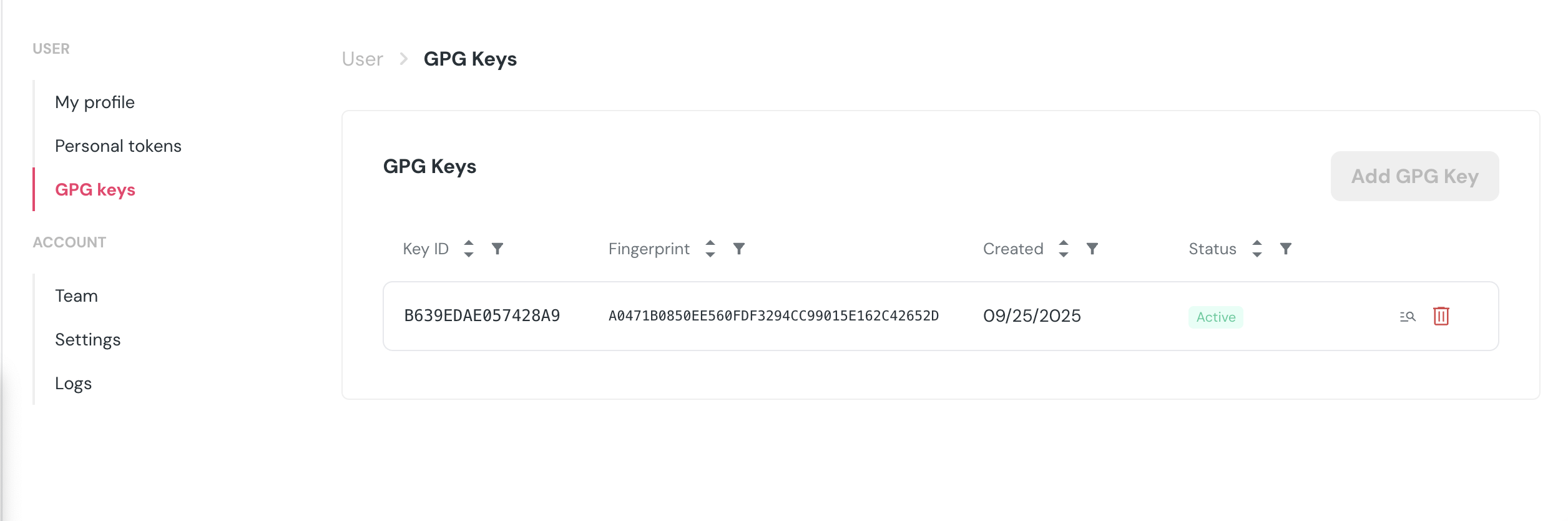
1. Navigate to **User Settings** > **GPG Keys** in your Elementary account
2. Click **"Add GPG Key"** to generate a new key
3. Configure your key settings
4. Click **"Generate Key"** to create your GPG key
5. Copy the public key
6. Go to **GitHub** → **Settings** → **SSH and GPG keys**
7. Click **"New GPG key"** and paste the public key
You can only have one active GPG key at a time. To use a different key, you'll
need to revoke the current one first.
### View your GPG key details
Once generated, you can **view the public key** - useful for adding to GitHub or other Git hosting services.
### Revoke a GPG key
If you need to revoke your current GPG key:
1. Go to **User Settings** > **GPG Keys**
2. Find your active key in the table
3. Click the **trash icon** to revoke the key
4. Confirm the revocation
**Permanent action:** Revoking a GPG key is permanent and cannot be undone.
You'll need to generate a new key to continue using GPG signing.
## How commits are signed
When GPG commit signing is enabled, Elementary will:
1. Automatically detect if you have an active GPG key
2. Use your key to sign commits when creating pull requests or making changes
3. Fall back gracefully to unsigned commits if signing fails
### Commit signature verification
Signed commits will show a "Verified" badge in GitHub and other Git hosting services, indicating that:
* The commit was signed with a valid GPG key
* The signature matches the commit content
* The key belongs to the commit author
## Best practices
### Key management
* Use strong key lengths (4096 bits recommended)
* Set expiration dates (90 days recommended)
* Revoke compromised keys immediately
### Troubleshooting
If commits aren't being signed:
1. Check you have an active GPG key in your Elementary settings
2. Verify the key hasn't expired
3. Make sure you added the public key to GitHub