> ## Documentation Index
> Fetch the complete documentation index at: https://docs.elementary-data.com/llms.txt
> Use this file to discover all available pages before exploring further.
# Microsoft Teams
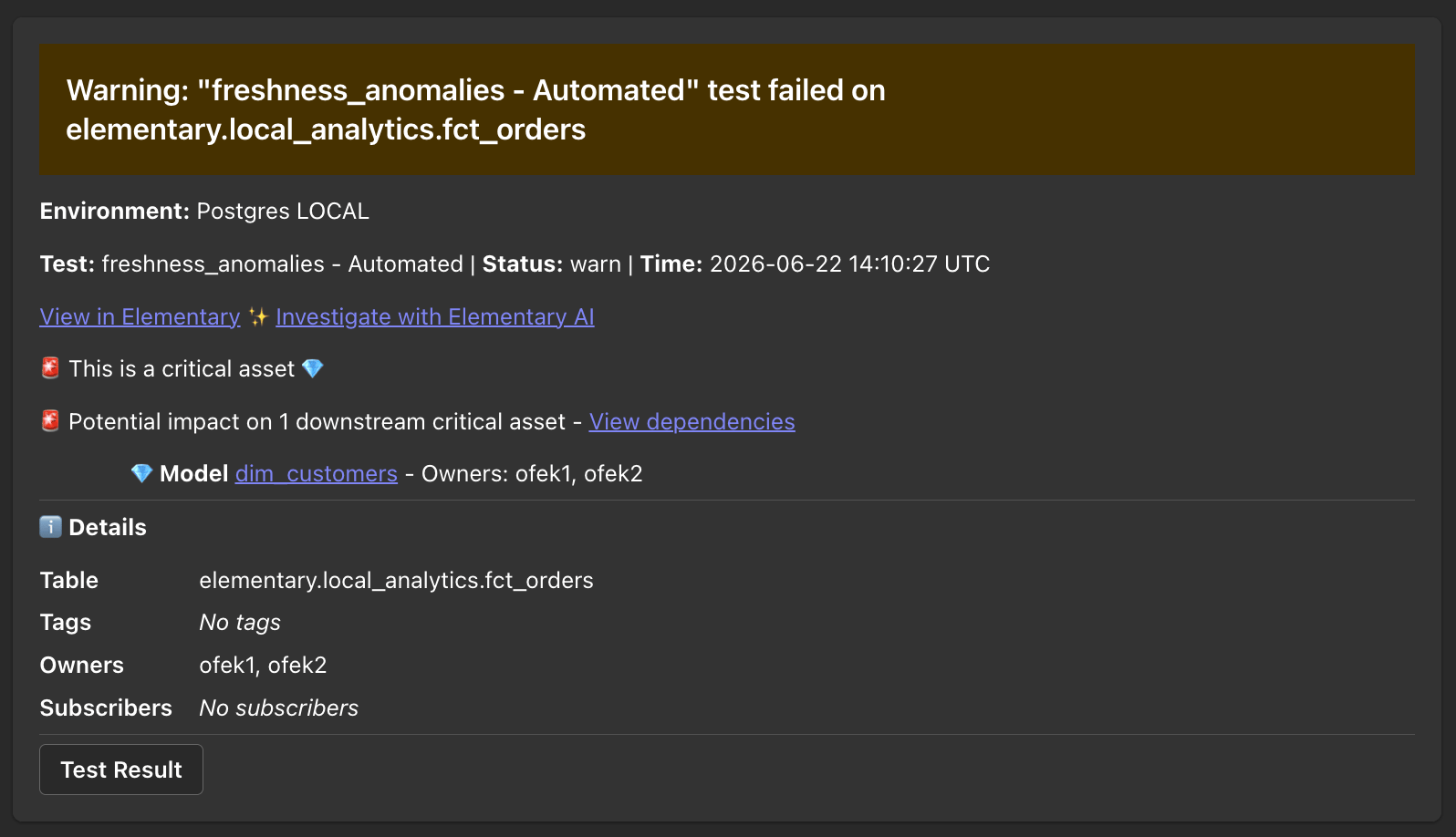
Elementary's Microsoft Teams app sends alerts when data issues happen, as
[Adaptive Cards](https://adaptivecards.io/) with rich context. The app is
installed once per team and Elementary posts to any standard channel in that
team.
You can create [alert rules](/features/alerts-and-incidents/alert-rules) to
distribute alerts to different channels and destinations.
## Connecting the Microsoft Teams app
Install the [Elementary app from the Microsoft Teams App Store](https://marketplace.microsoft.com/en-us/product/teams-app/WA200011427)
and add it to the team where you want to receive alerts.
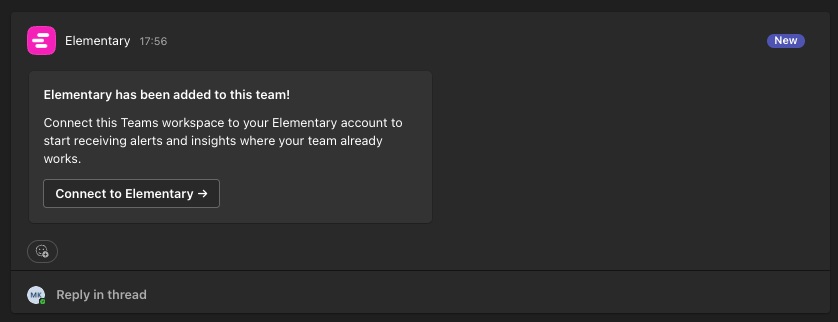
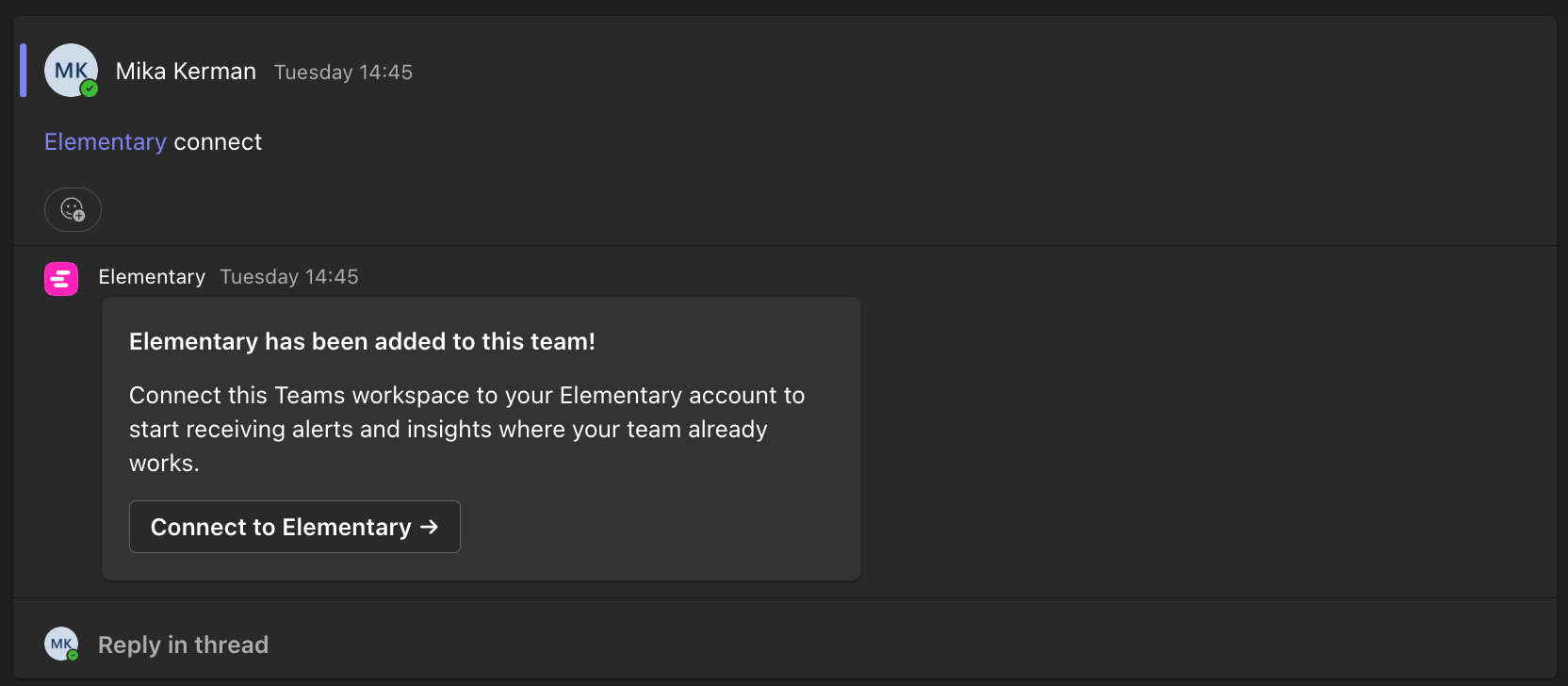
Once the bot is installed in a team, you should see this card.
Click **Connect to Elementary** to link this workspace to your
Elementary account.
This opens **Elementary** and connects the workspace automatically.
Connecting requires an Elementary user with the **Edit integrations**
permission — usually a user with the **Admin** role.
Once complete, you should see both:
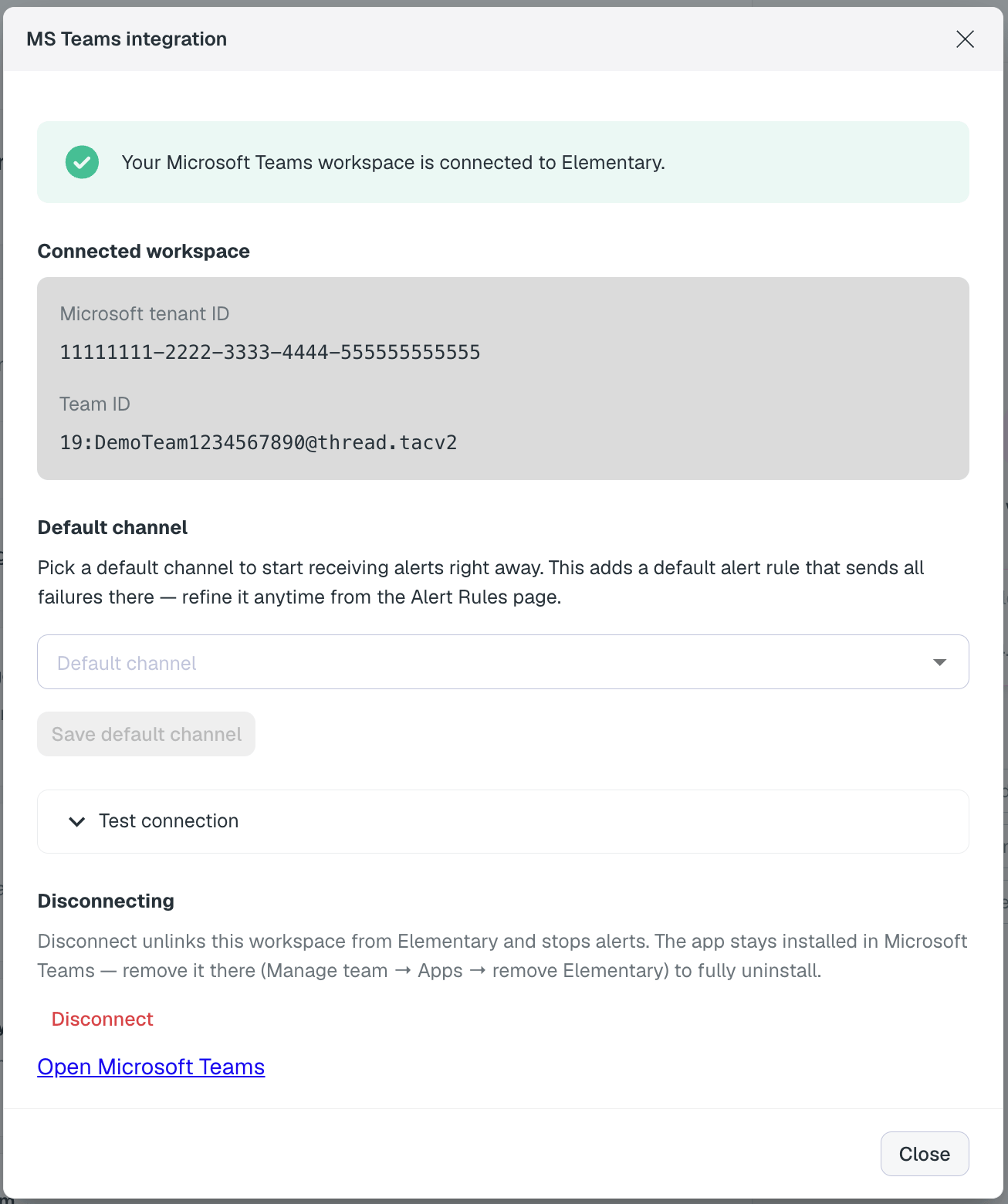
**In Elementary** — a dialog confirming the workspace is connected.
Pick a **Default channel** to start receiving alerts right away.
Setting a default channel automatically adds a default
[alert rule](/features/alerts-and-incidents/alert-rules) that sends all
failures to that channel. Alerts on warnings are not sent by default — to
refine this, go to the `Alert Rules` page.
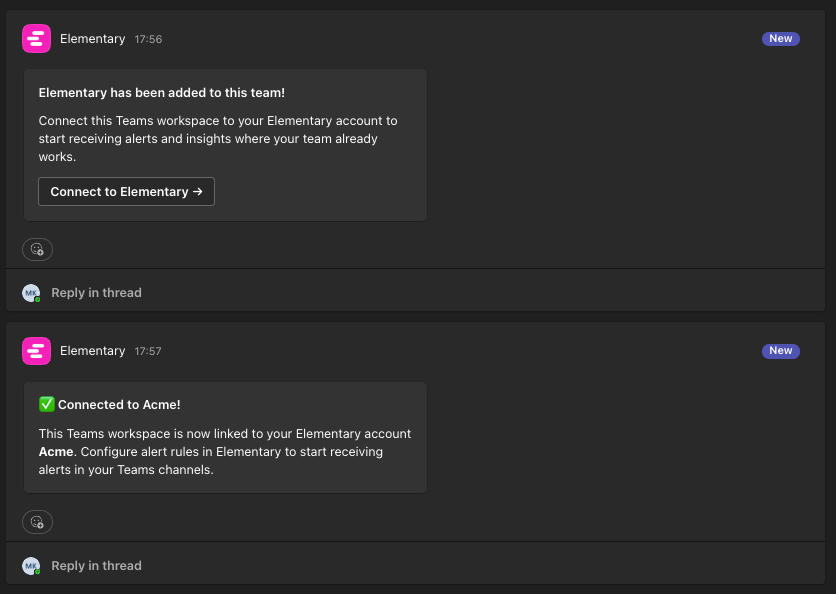
**In Microsoft Teams** — a confirmation card in the channel:
You can regenerate the connection link any time by typing
**`@Elementary connect`** in the channel.
Use [alert rules](/features/alerts-and-incidents/alert-rules) to control
which alerts go to which channels — for example, routing test failures to
one channel and freshness issues to another.
## Bot commands
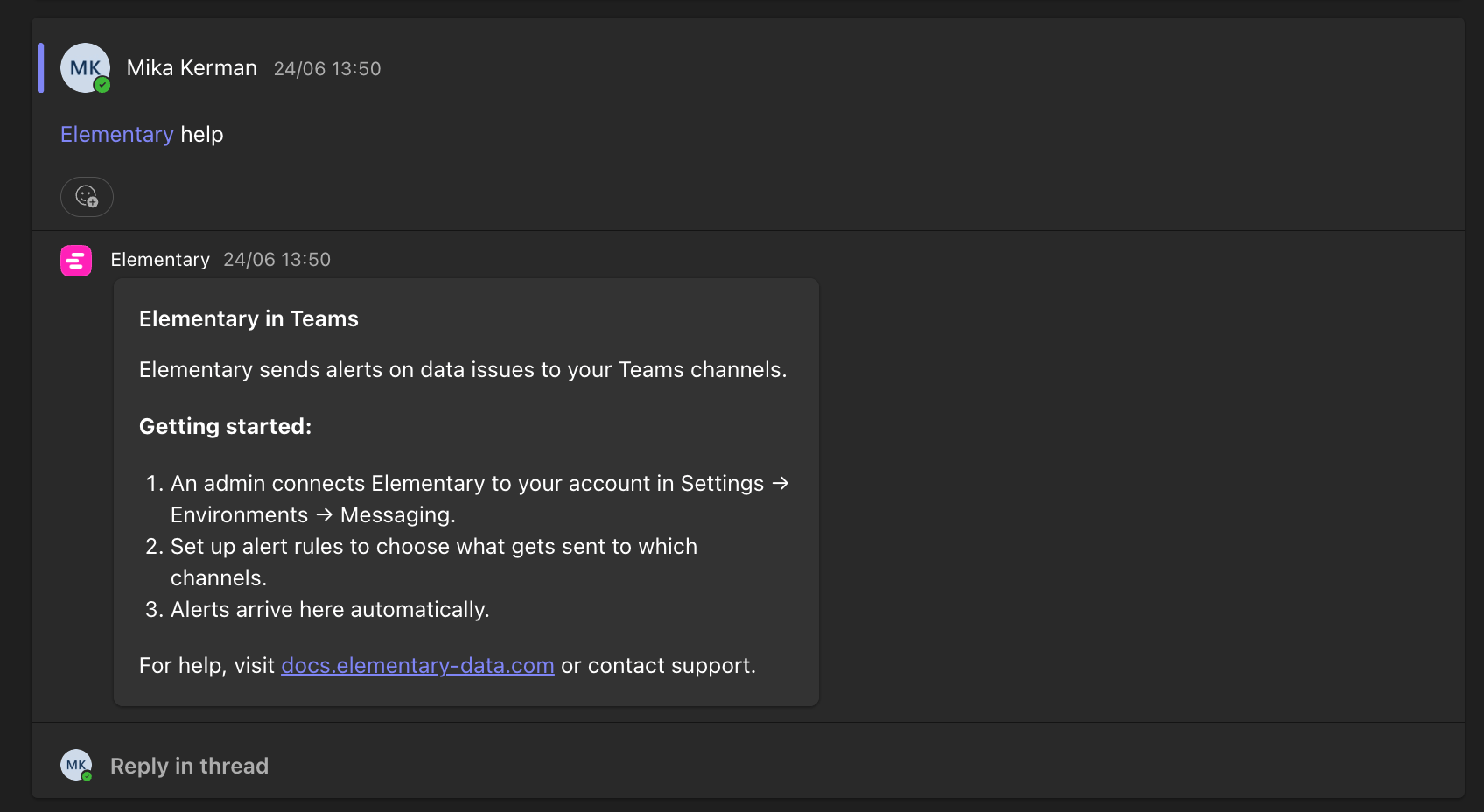
**In Microsoft Teams**, mention the bot in any channel it's installed in:
* **`@Elementary help`** — what Elementary can do and how to get started.
* **`@Elementary connect`** — a fresh link to connect the team to your Elementary account.
## Supported channels
The app posts to **standard channels** in the team it's installed in. Private
and shared channels are not supported.
## Disconnecting
You can disconnect from either side:
* **From Elementary** — go to `Environments` → `Connect messaging app`, open the
**Microsoft Teams App** menu, and choose **Disconnect**. This unlinks the
workspace from your Elementary account and stops alerts. The app stays
installed in Teams — remove it there too if you want to fully uninstall.
* **In Microsoft Teams** — remove the Elementary app from the team
(`Manage team` → `Apps` → remove **Elementary**). This uninstalls the app, and
the integration then shows as disconnected **in Elementary**.
Either way, you can reconnect later from the welcome message or by typing
**`@Elementary connect`** in the channel.
Each Teams team can be connected to a single Elementary account. If a team is
already connected to a different account, connecting it again is rejected.
 ## Connecting the Microsoft Teams app
 This opens **Elementary** and connects the workspace automatically.
Connecting requires an Elementary user with the **Edit integrations**
permission — usually a user with the **Admin** role.
Once complete, you should see both:
**In Elementary** — a dialog confirming the workspace is connected.
Pick a **Default channel** to start receiving alerts right away.
This opens **Elementary** and connects the workspace automatically.
Connecting requires an Elementary user with the **Edit integrations**
permission — usually a user with the **Admin** role.
Once complete, you should see both:
**In Elementary** — a dialog confirming the workspace is connected.
Pick a **Default channel** to start receiving alerts right away.
 * **`@Elementary connect`** — a fresh link to connect the team to your Elementary account.
 ## Supported channels
The app posts to **standard channels** in the team it's installed in. Private
and shared channels are not supported.
## Disconnecting
You can disconnect from either side:
* **From Elementary** — go to `Environments` → `Connect messaging app`, open the
**Microsoft Teams App** menu, and choose **Disconnect**. This unlinks the
workspace from your Elementary account and stops alerts. The app stays
installed in Teams — remove it there too if you want to fully uninstall.
* **In Microsoft Teams** — remove the Elementary app from the team
(`Manage team` → `Apps` → remove **Elementary**). This uninstalls the app, and
the integration then shows as disconnected **in Elementary**.
Either way, you can reconnect later from the welcome message or by typing
**`@Elementary connect`** in the channel.
## Supported channels
The app posts to **standard channels** in the team it's installed in. Private
and shared channels are not supported.
## Disconnecting
You can disconnect from either side:
* **From Elementary** — go to `Environments` → `Connect messaging app`, open the
**Microsoft Teams App** menu, and choose **Disconnect**. This unlinks the
workspace from your Elementary account and stops alerts. The app stays
installed in Teams — remove it there too if you want to fully uninstall.
* **In Microsoft Teams** — remove the Elementary app from the team
(`Manage team` → `Apps` → remove **Elementary**). This uninstalls the app, and
the integration then shows as disconnected **in Elementary**.
Either way, you can reconnect later from the welcome message or by typing
**`@Elementary connect`** in the channel.