> ## Documentation Index
> Fetch the complete documentation index at: https://docs.elementary-data.com/llms.txt
> Use this file to discover all available pages before exploring further.
# Microsoft Teams
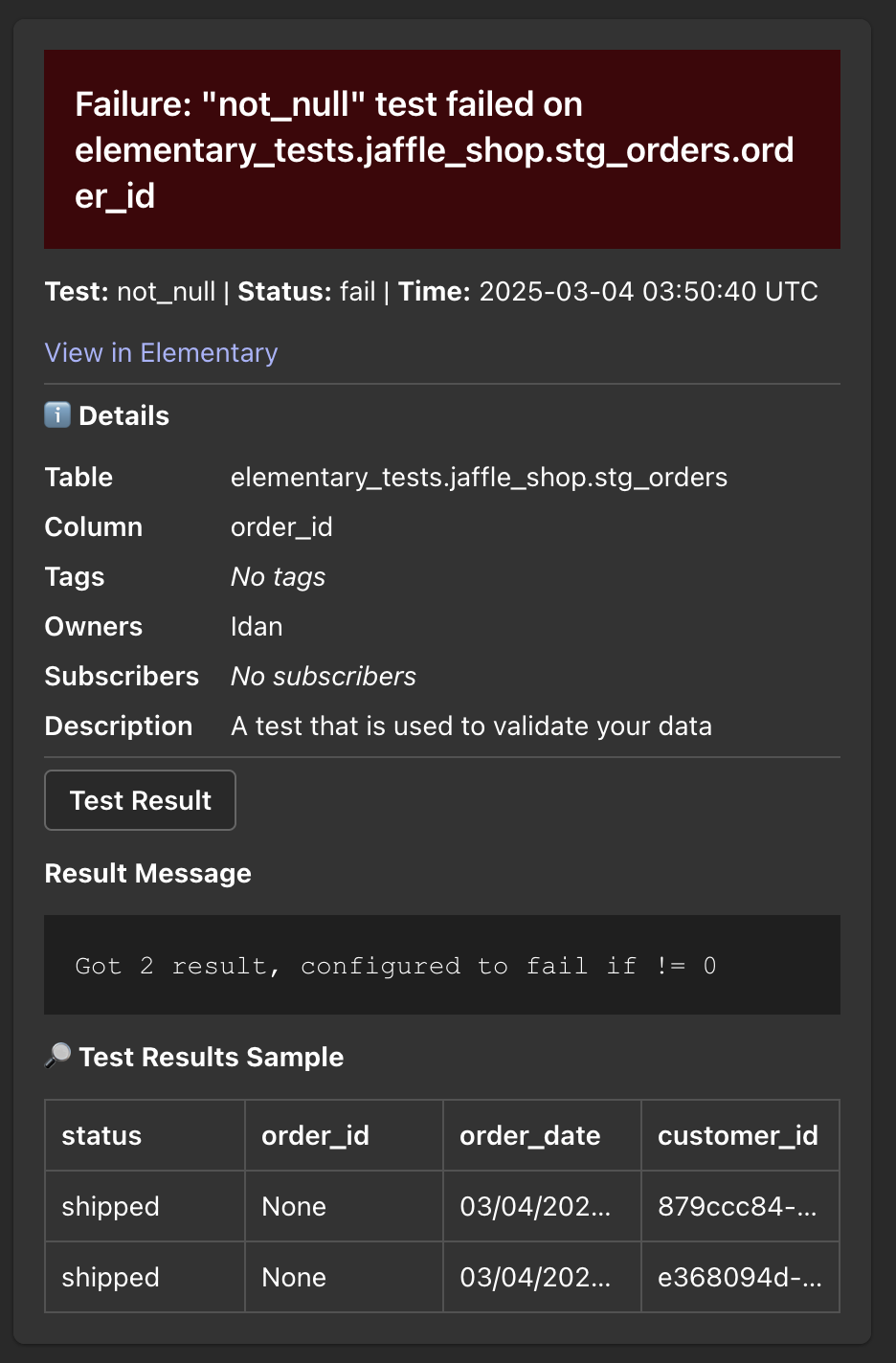
Elementary's Microsoft Teams integration enables sending alerts when data issues happen.
The alerts are sent using Adaptive Cards format, which provides rich formatting and interactive capabilities.
The alerts include rich context, and you can create [alert rules](/cloud/features/alerts-and-incidents/alert-rules) to distribute alerts to different channels and destinations.
## Enabling Microsoft Teams alerts
1. Go to the `Environments` page on the sidebar.
2. Select an environment and click connect on the `Connect messaging app` card (first card), and select `Microsoft Teams`.
3. For each MS Teams channel you want to connect, create a webhook using Power Automate. Power Automate is Microsoft's recommended way to receive webhook requests in Teams. You can set it up in two ways — both produce the same webhook URL:
**Option A — directly from Teams (faster):**
1. Go to your Teams channel
2. Click the three dots (...) next to the channel name
3. Select `Workflows`
4. Choose the template "Post to channel when a webhook request is received"
5. Copy the webhook URL
**Option B — from the Power Automate website:**
1. Go to [Power Automate](https://flow.microsoft.com)
2. Create a new instant cloud flow
3. Search for "When a HTTP request is received" as your trigger
4. Add a "Post adaptive card in a chat or channel" action
5. Configure the team and channel where you want to post
6. Save the flow and copy the HTTP POST URL
Elementary cannot directly verify if messages were successfully delivered via Power Automate. Monitor your workflow runs in Power Automate to check for any errors.
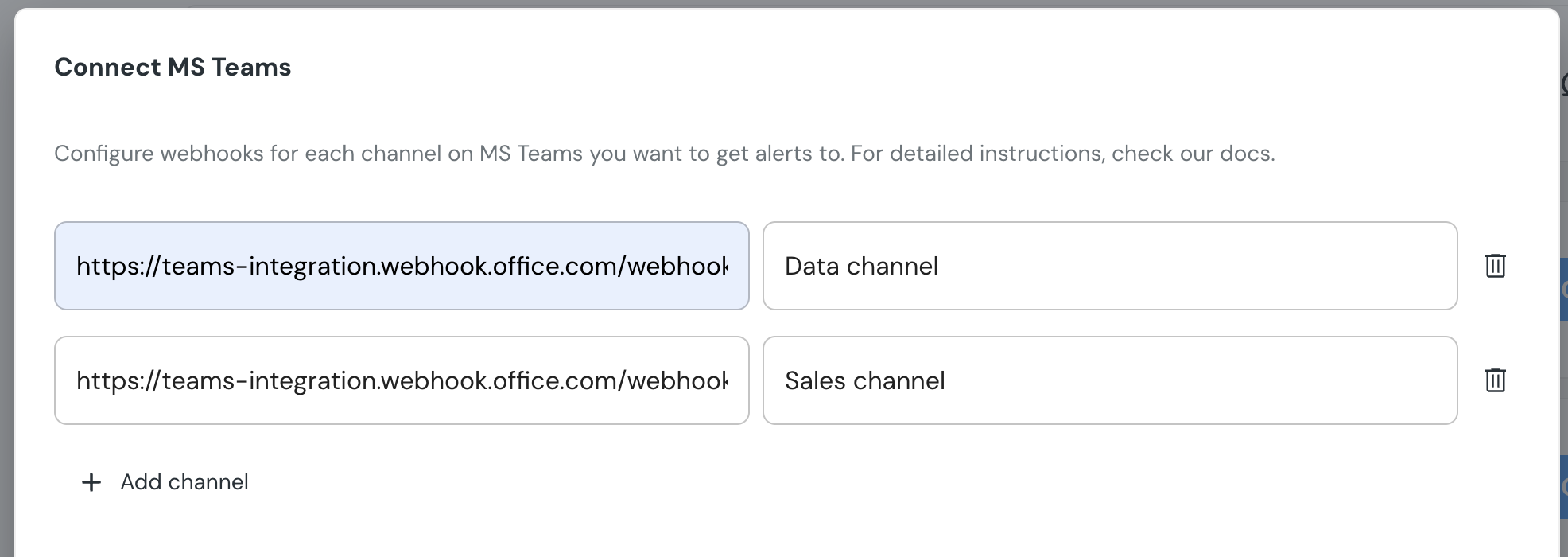
4. Configure your Microsoft Teams webhooks and give each one a name indicating its connected channel:
5. Select a default channel for alerts and set the suppression interval.
The default channel you select will automatically add a default [alert rule](/cloud/features/alerts-and-incidents/alert-rules) to send all failures to this channel. Alerts on warnings are not sent by default. To modify and add rules, navigate to the `Alert Rules` page.
## Microsoft 365 Connectors
Microsoft 365 Connectors (the legacy incoming webhook method) are no longer supported by Microsoft. If you previously connected Elementary using a Connector-based webhook, you'll need to recreate it using Power Automate Workflows above.
See [Microsoft's retirement announcement](https://devblogs.microsoft.com/microsoft365dev/retirement-of-office-365-connectors-within-microsoft-teams/) for more details.