> ## Documentation Index
> Fetch the complete documentation index at: https://docs.elementary-data.com/llms.txt
> Use this file to discover all available pages before exploring further.
# Opsgenie
Elementary's Opsgenie integration enables sending alerts when data issues happen.
It is recommended to create [alert rules](/cloud/features/alerts-and-incidents/alert-rules) to filter and select the alerts that will create incidents in Opsgenei.
## Enabling Opsgenie alerts
### Create an Opsgenie API key
To create an `Opsgenie API key`, go to `Opsgenie` and follow the following steps:
* Create or select an `Opsgenie` team - this team will be responsible for alerts generated by Elementary.
* On the selected team go `Integrations` tab and press on `Add Integration`:
* Select `API` and press `Add`
* Select a name for the `API integration` - “Elementary” for example
* Make sure `Create` and `update access` are selected
* Press on `Save Integration`
* Copy the `API key` and provide it to Elementary UI.
### Add API key to an environment
1. Go to the `Environments` page on the sidebar.
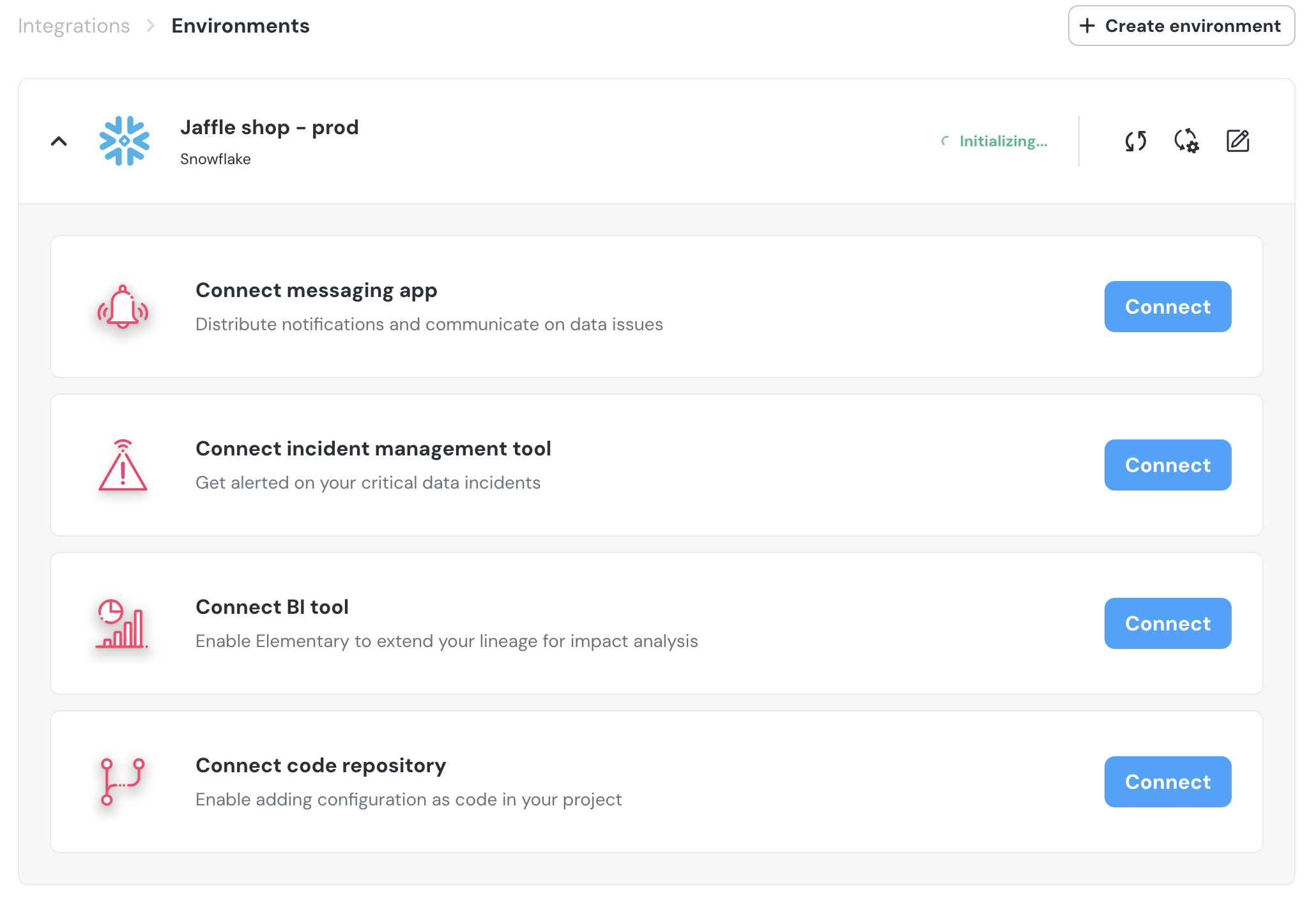
2. Select an environment and click connect on the `Connect incident management tool` card (second card), and select `Opsgenie`.
3. Fill the `API key` and select the `API URL` and save the integration:
4. `Opsgenie` will now be available as a destination on the [`alert rules`](/cloud/features/alerts-and-incidents/alert-rules) page. You can add rules to create Opsgenie incidents out of alerts who match your rule.