> ## Documentation Index
> Fetch the complete documentation index at: https://docs.elementary-data.com/llms.txt
> Use this file to discover all available pages before exploring further.
# Rootly
Elementary's Rootly integration enables sending alerts to [Rootly](https://rootly.com) when data issues are detected.
Alerts are sent to a Rootly [Generic Webhook Alert Source](https://docs.rootly.com/integrations/generic-webhook-alert-source/generic-webhook-alert-source). Rootly then creates or updates alerts, and can trigger incidents, paging, and other alert workflows based on your configuration.
To send alerts to Rootly, you need to create [alert rules](/cloud/features/alerts-and-incidents/alert-rules) and select Rootly as the destination.
## Prerequisites
You need a Rootly account with access to create Alert Sources.
## Create a Generic Webhook Alert Source in Rootly
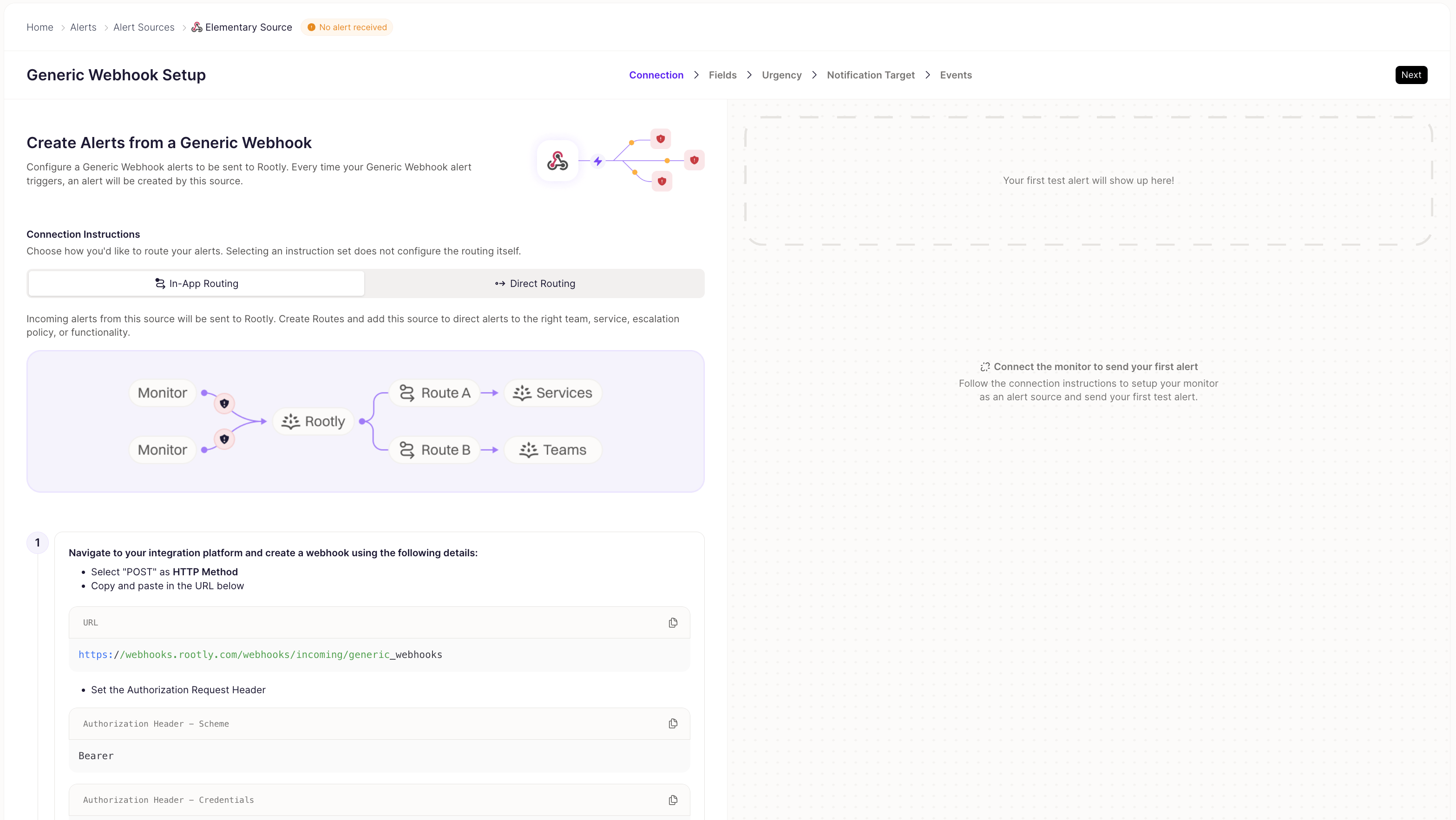
Before connecting Elementary, you need to create a Generic Webhook Alert Source in Rootly:
1. In Rootly, go to **Alerts** → **Alert Sources** and click **Add source**. Search for **Generic Webhook** and select it.
2. Give the alert source a name (e.g. "Elementary Source"), then choose how alerts from this source should be routed — **In-App Routing** (build Routes in Rootly based on alert fields, e.g. severity or tags) or **Direct Routing** (embed a fixed target in the webhook URL). See [Routing alerts to a target](#routing-alerts-to-a-target) below for details on both.
3. On the same setup page, copy the **webhook URL** and set the **Authorization Header** — scheme `Bearer`, and a credential value of your choosing. You will need both the URL and the credential when connecting in Elementary.
The Bearer credential is a secret. Keep it secure and do not share it publicly.
## Connect Rootly in Elementary
1. Go to the **Environments** page on the sidebar.
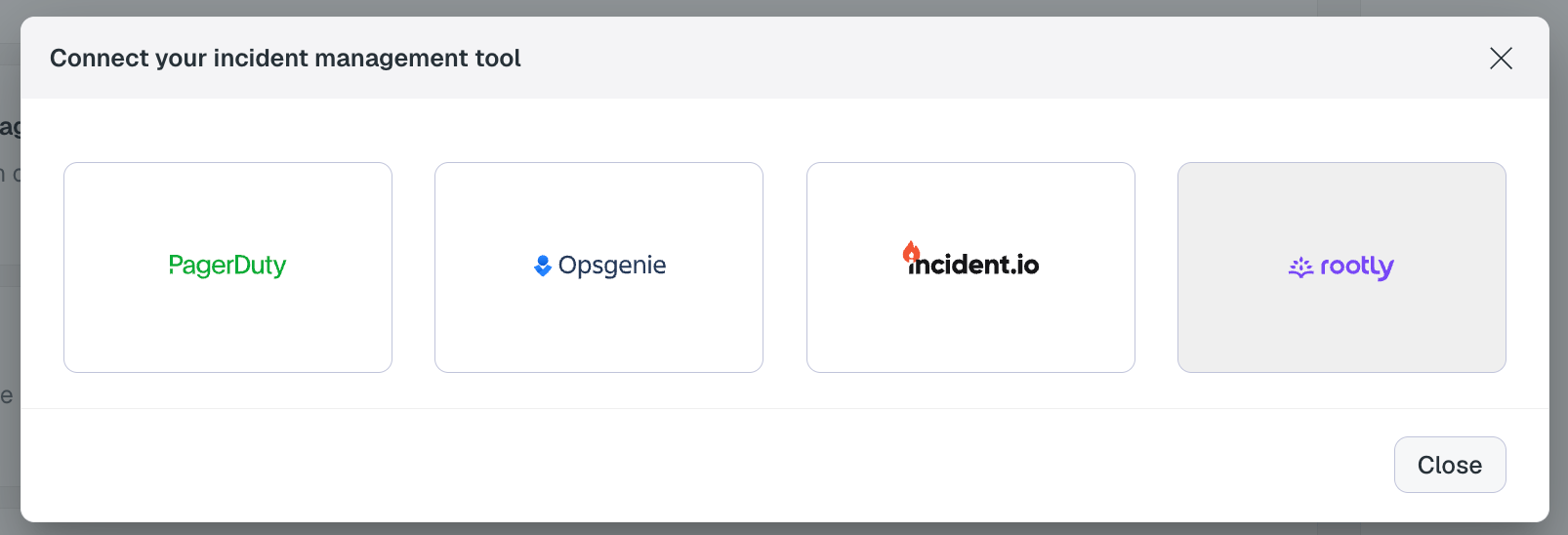
2. Select an environment and click connect on the **Connect incident management tool** card, and select **Rootly**.
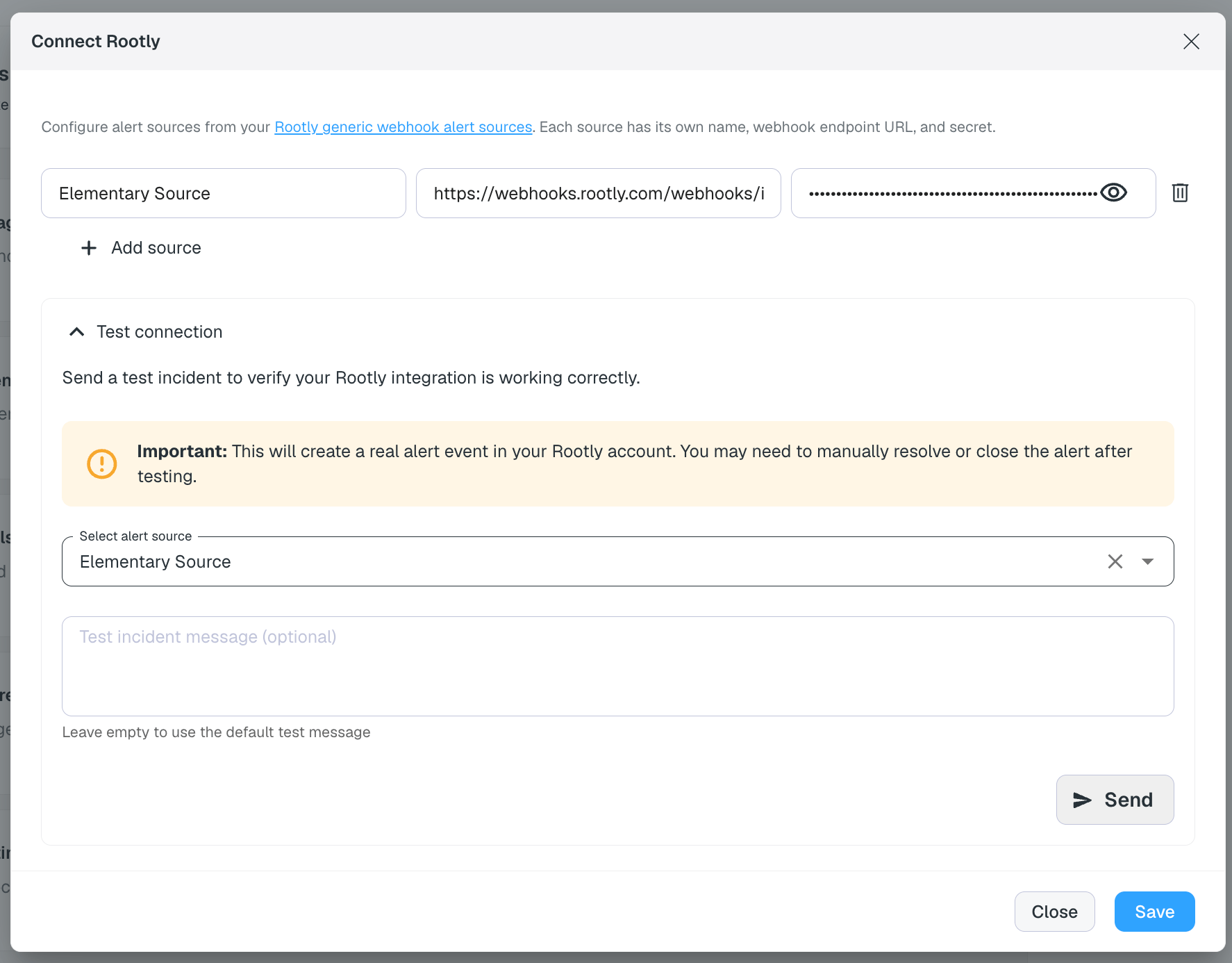
3. Fill in the connection details from your Rootly alert source — **source name**, **webhook endpoint URL**, and **webhook secret** (the Bearer credential from the Authorization header) — then expand **Test connection** to send a test incident and verify the integration is working.
The test connection sends a real alert event to Rootly. You may need to manually resolve or close it after testing.
4. Click **Save**. **Rootly** will now be available as a destination on the [alert rules](/cloud/features/alerts-and-incidents/alert-rules) page.
You can add multiple alert sources by clicking **+ Add source** — for example, to route different alert rules to different Rootly alert sources.
## Configure Alert Fields in Rootly
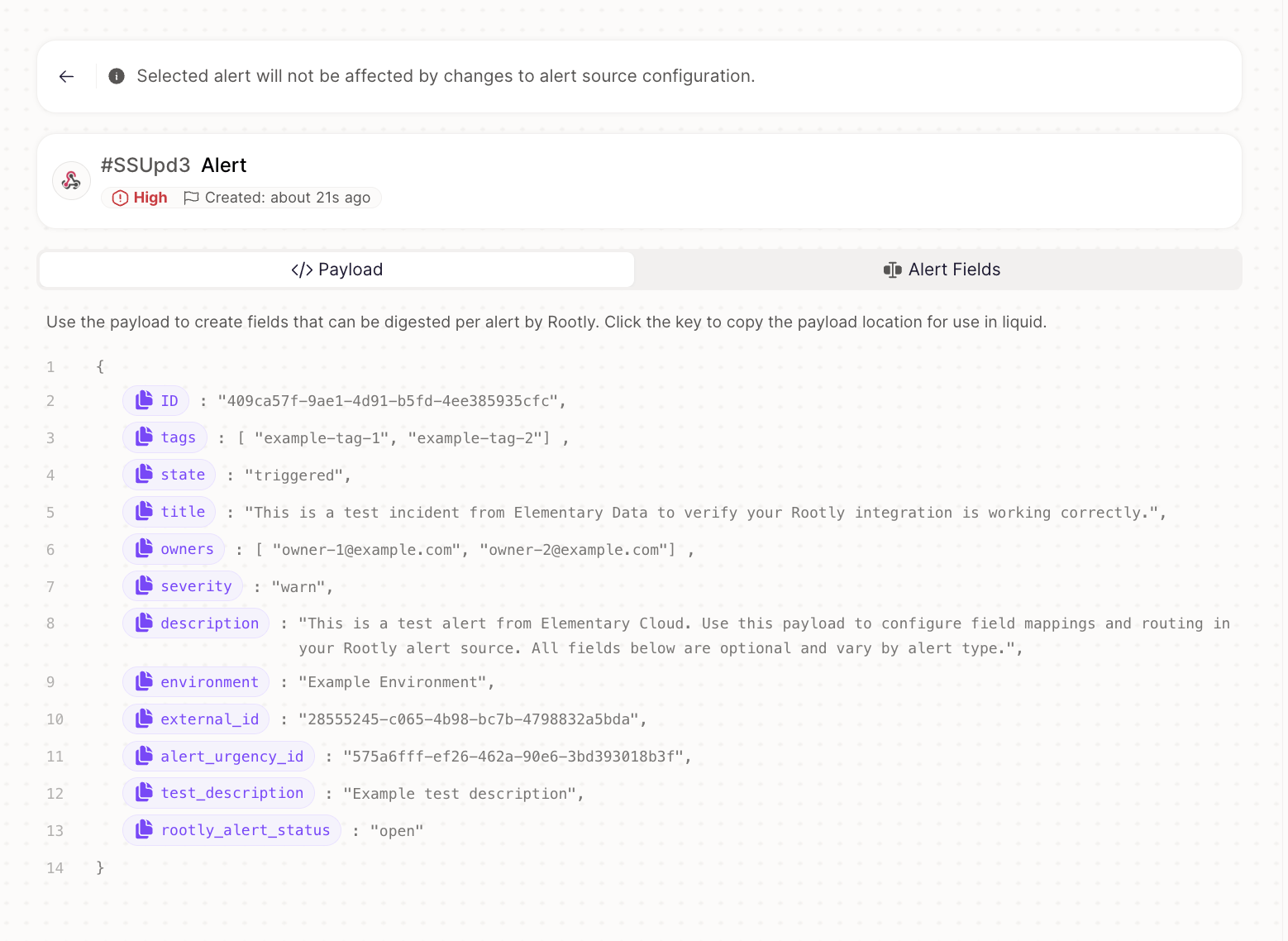
After sending a test alert from Elementary, open the alert in Rootly (or click **Send mock alert** on the source card for a sample payload without leaving Rootly) and switch to the **Payload** tab to see the raw JSON. Use it as a reference while mapping fields — click any key to copy its Liquid path.
Rootly doesn't require a specific payload shape — switch to the **Alert Fields** tab on the same alert to map the JSON keys Elementary sends to Rootly's alert fields yourself, using Liquid expressions (or by clicking the field directly in the payload preview).
None of this is enforced by Rootly — it will ingest the webhook and create an alert regardless of what you map. But skipping the mappings below has real consequences, so we recommend setting them up:
| Rootly field | Map to | Without this mapping... |
| ----------------------- | ------------- | ------------------------------------------------------------------------------------------------- |
| **Title** | `title` | Rootly falls back to a generic default, so alerts aren't identifiable at a glance |
| **External Identifier** | `external_id` | Every alert Elementary sends is treated as unrelated — no deduplication |
| **State** | `state` | [Auto-resolution](#configure-auto-resolution) can't work, since Rootly has no state to key off of |
Optional, but useful:
| Rootly field | Map to | Purpose |
| ---------------- | -------------- | ------------------------------------------------------------------ |
| **External URL** | `external_url` | Link back to the relevant page in Elementary Cloud |
| **Description** | `description` | Only present on grouped-alert notifications, not individual alerts |
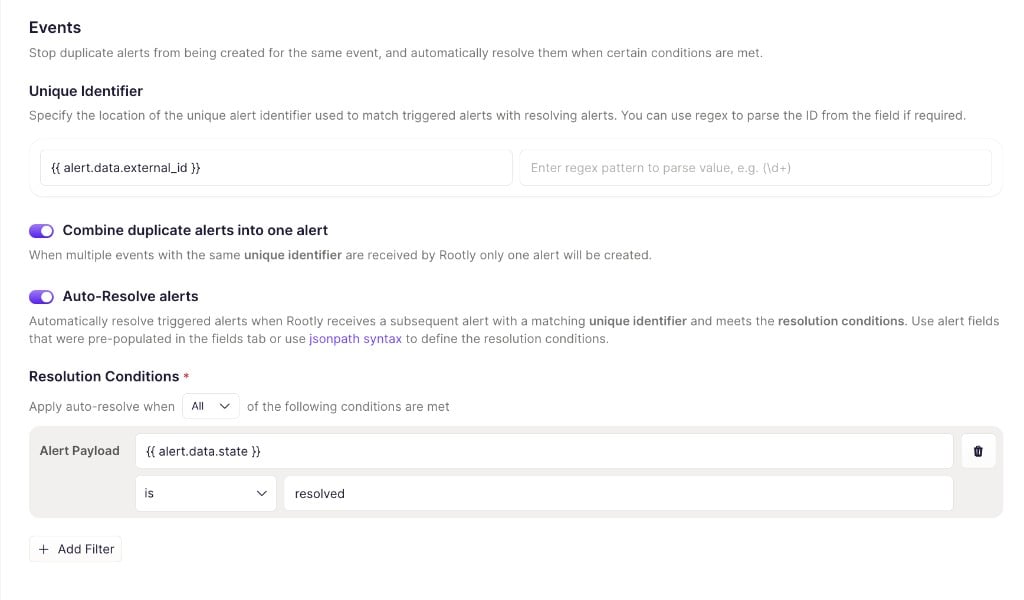
### Configure auto-resolution
Elementary sends a `resolved` state event with the same `external_id` when a previously failing test or model passes again. To have Rootly automatically resolve the alert:
1. In the alert source settings, open the **Events** tab.
2. Set **Unique Identifier** to `$.external_id`.
3. Turn on **Combine duplicate alerts into one alert** and **Auto-Resolve alerts**.
4. Under **Resolution Conditions**, set `{{ alert.data.state }}` **is** `resolved`.
Rootly pre-fills the Unique Identifier field with `$.ID`, which is a field Rootly generates itself and is **different on every event** — it will never match a triggered alert to its resolved event. Make sure you change it to `$.external_id`, which is the field Elementary keeps stable across the triggered/resolved pair for the same alert. Getting this wrong is the most common cause of alerts not auto-resolving, or being combined that shouldn't be.
### Available fields
Elementary sends the following fields depending on the alert type. All fields are optional — they are included only when the data is available.
| Field | Type | Description |
| ------------------ | ---------------- | --------------------------------------------- |
| `severity` | String | Alert severity (e.g. `warn`, `fail`, `error`) |
| `owners` | Array of strings | Asset and test owners (email addresses) |
| `tags` | Array of strings | Asset and test tags |
| `environment` | String | Elementary environment name |
| `test_description` | String | Test description (test alerts only) |
| `source` | String | Pipeline tool name (pipeline alerts only) |
| `connector` | String | Connector name (pipeline alerts only) |
| `failure_reason` | String | Failure reason (pipeline alerts only) |
Pipeline alerts also include additional fields such as `connector_type`, `connector_id`, `sync_id`, `destination`, `task_type`, and `rescheduled_at`.
When configuring fields, use the test alert payload as a reference — it includes sample values for the common fields, making it easy to set up mappings.
### Recommended field mappings
We recommend mapping these fields in Rootly, in addition to the required ones above:
* **`severity`** — enables routing alerts by severity
* **`owners`** — enables filtering and routing by data owner
* **`tags`** — enables filtering by tag
For array fields like `owners` and `tags`, map them to a field type in Rootly that supports multiple values.
If you need additional fields for your routing that are not currently included, [reach out to us](https://www.elementary-data.com/contact-us) and we'll work with you to add them.
## Routing alerts to a target
When creating the Generic Webhook Alert Source, Rootly asks how alerts from it should be routed. Elementary works with either option:
* **In-App Routing** (default, recommended) — create [Routes](https://docs.rootly.com/alerts/alert-routing) in Rootly that send alerts to a service, team, or escalation policy based on conditions over the alert fields you map above (e.g. route on `severity` or `tags`). This is the most flexible option and lets a single alert source fan out to different targets.
* **Direct Routing** — embed a fixed target in the webhook URL (`.../notify//`) so every alert from that source always routes to the same place. Simplest option if you only need one target; for multiple targets, add multiple Rootly sources in Elementary and route different [alert rules](/cloud/features/alerts-and-incidents/alert-rules) to each.