> ## Documentation Index
> Fetch the complete documentation index at: https://docs.elementary-data.com/llms.txt
> Use this file to discover all available pages before exploring further.
# Microsoft Entra ID
## Enabling SAML
In order to enable SAML using Microsoft Entra ID (Previously Azure AD SSO), we need the following steps to be taken:
* Go to the [Microsoft Entra portal](https://entra.microsoft.com/)
* On the left, choose Applications → Enterprise Applications
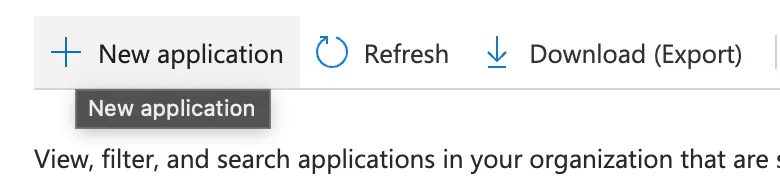
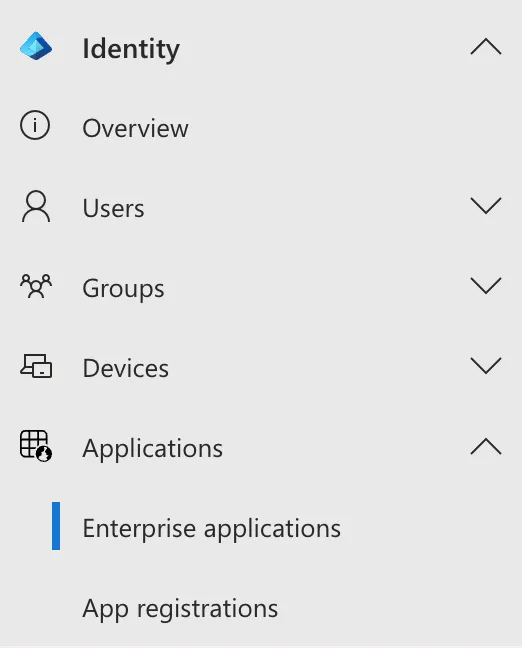 * Click on “New Application”
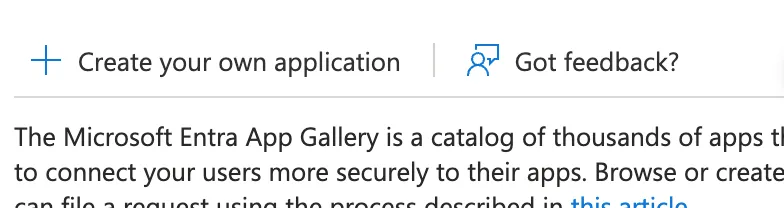
 * Click on “Create your own application”
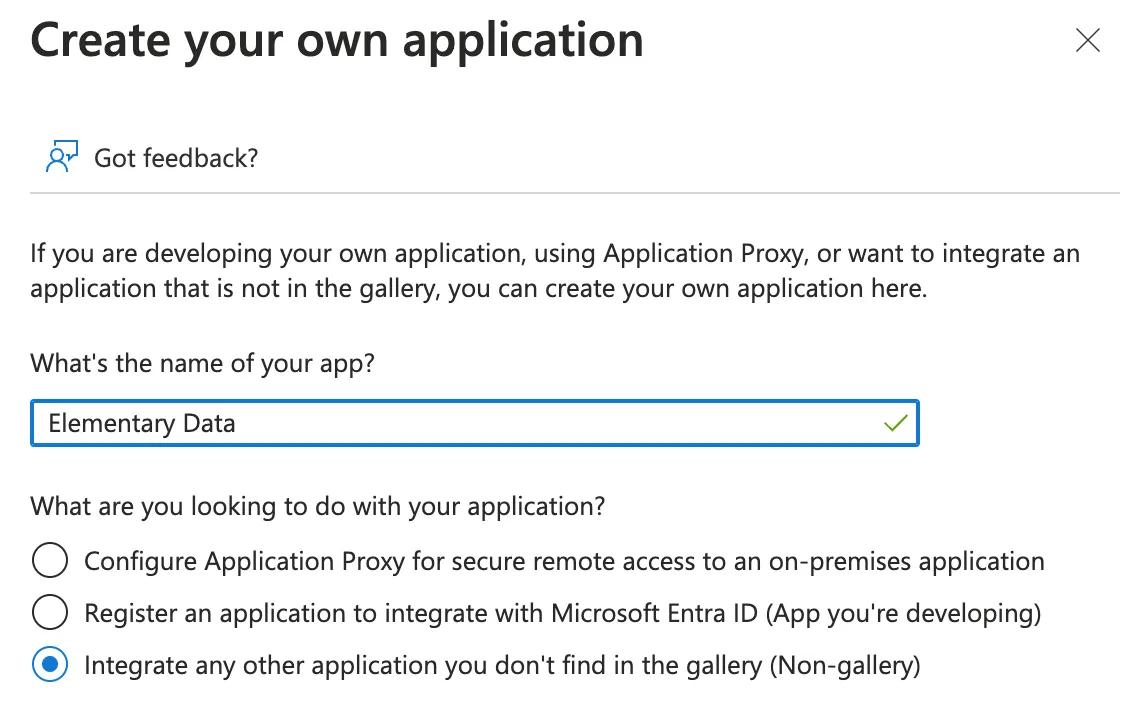
 * Choose the last option in the side-window that opens and click “Create”
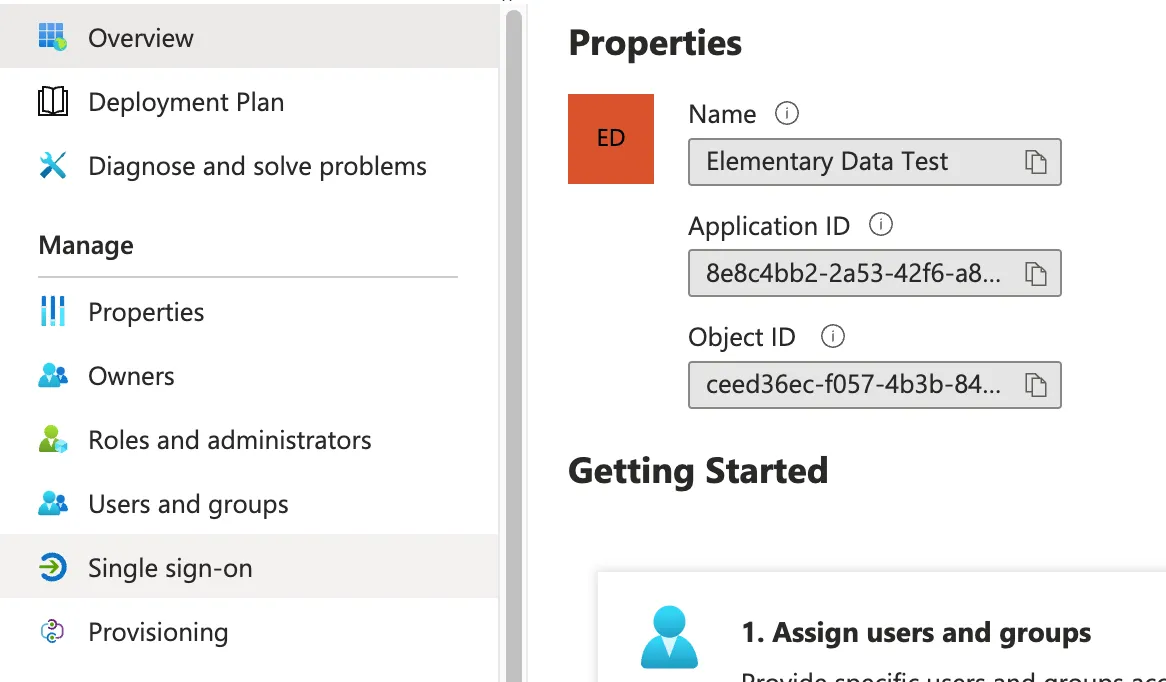
 * In the App window that opens, click on “Single Sign-On”
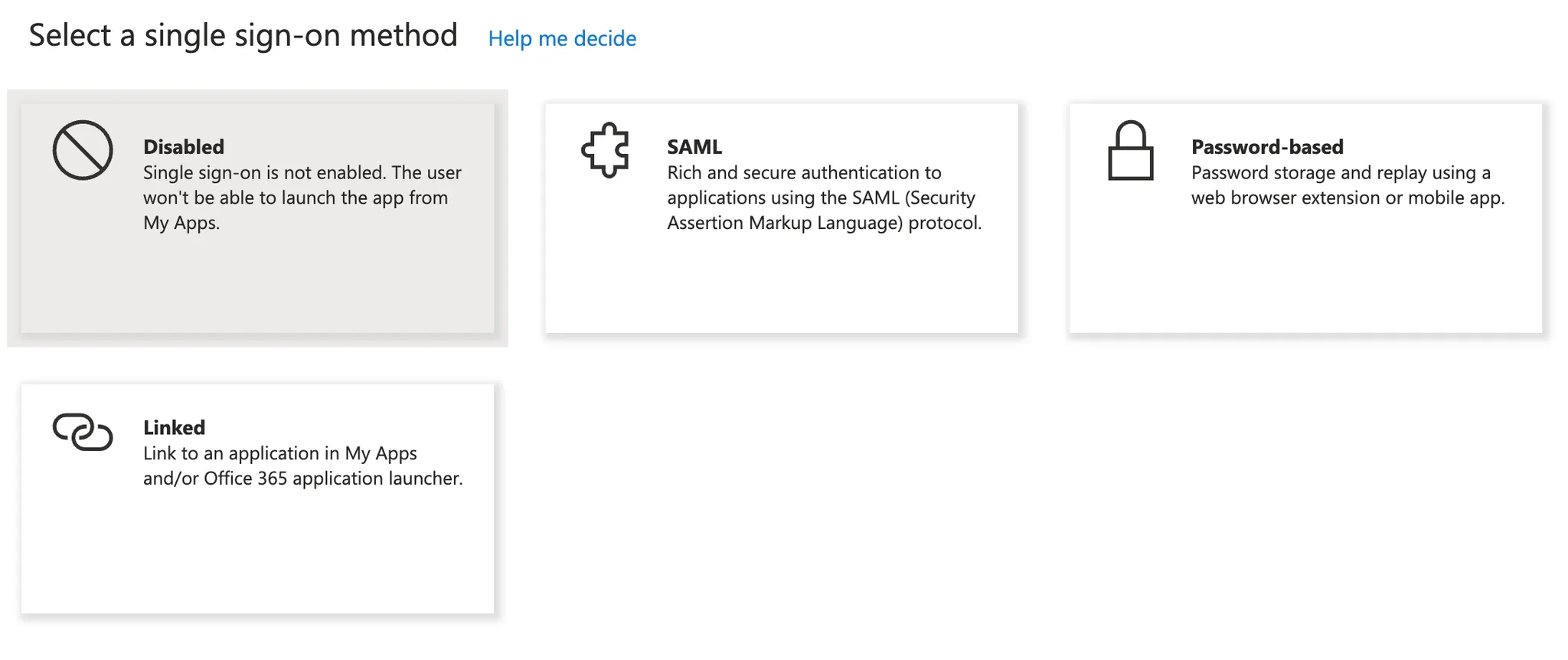
 * Choose SAML
 * Click on Edit on the “Basic SAML Configuration” section
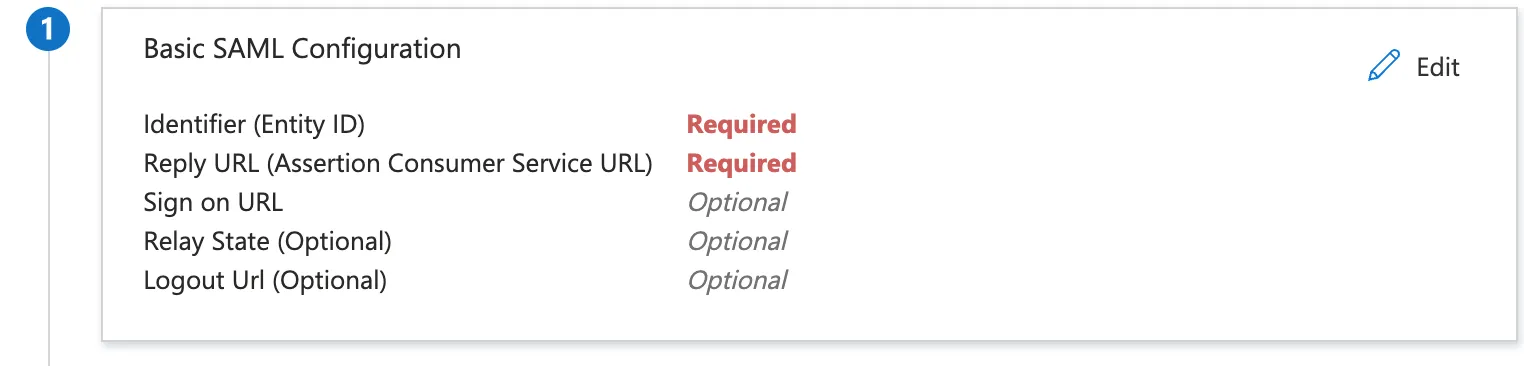 * Fill the following entries:
* Identifier (Entity ID) - `elementary`
* Reply URL - [`https://elementary-data.frontegg.com/auth/saml/callback`](https://elementary-data.frontegg.com/auth/saml/callback)
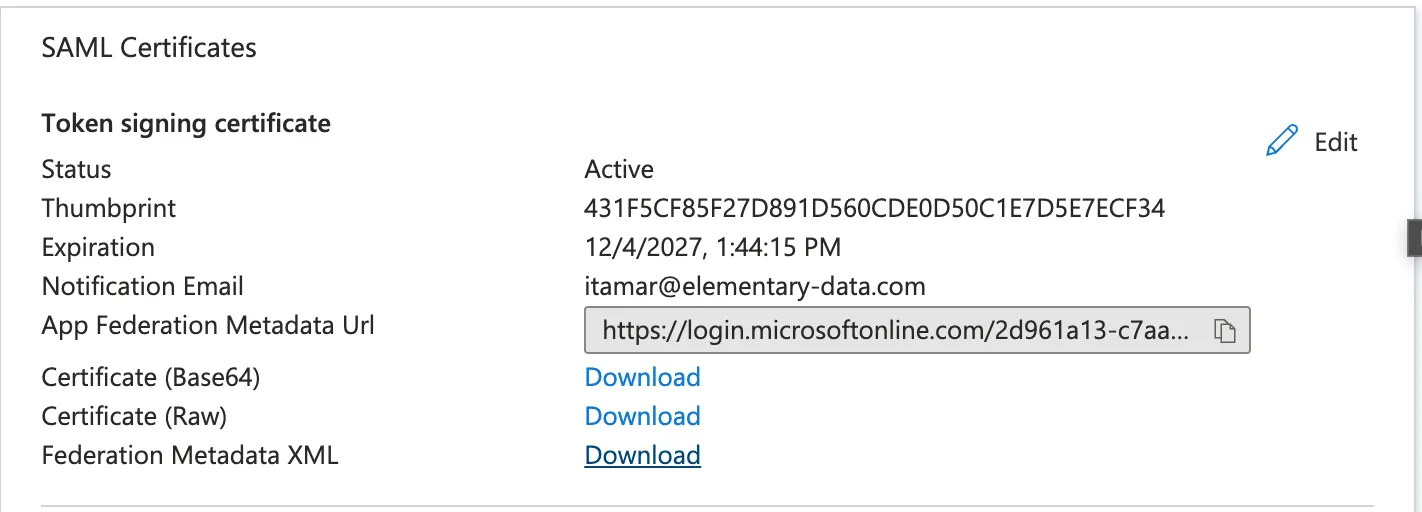
* Download the Federation Metadata XML.
* Fill the following entries:
* Identifier (Entity ID) - `elementary`
* Reply URL - [`https://elementary-data.frontegg.com/auth/saml/callback`](https://elementary-data.frontegg.com/auth/saml/callback)
* Download the Federation Metadata XML.
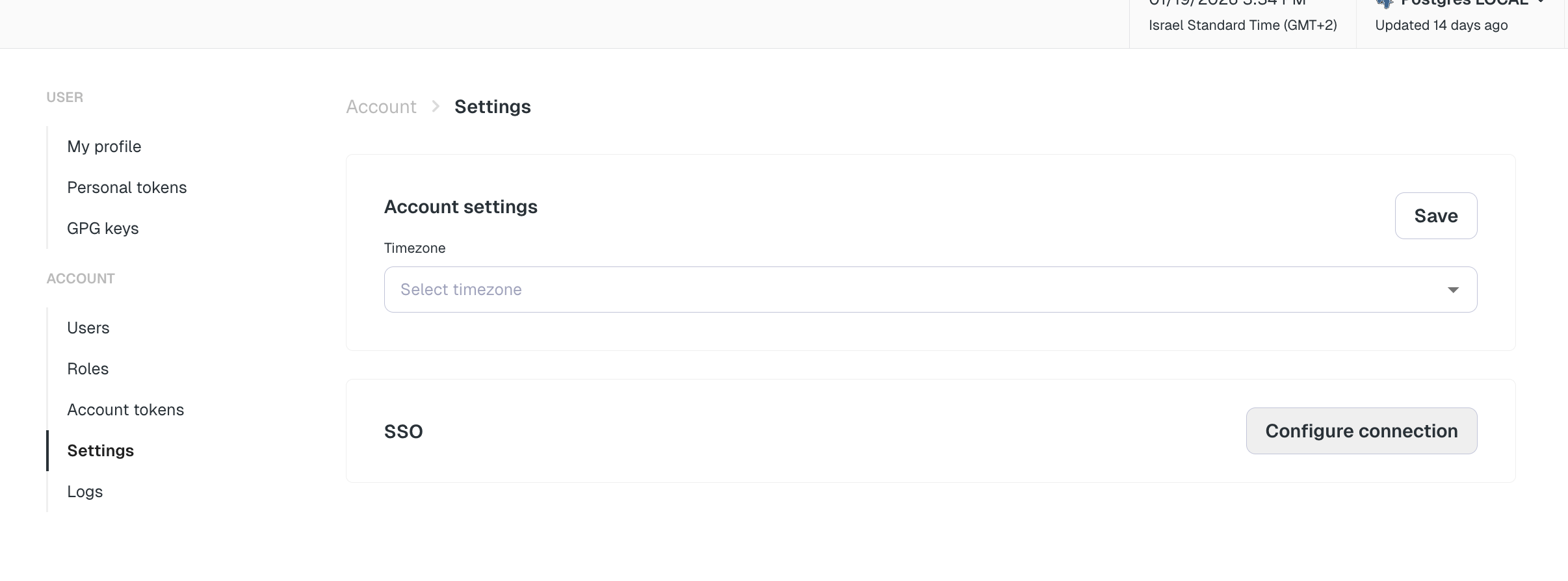
 * Go to your account settings page in Elementary (Your avatar in the top right corner -> Account -> Settings)
* In the SSO section, click on "Configure connection"
* Go to your account settings page in Elementary (Your avatar in the top right corner -> Account -> Settings)
* In the SSO section, click on "Configure connection"
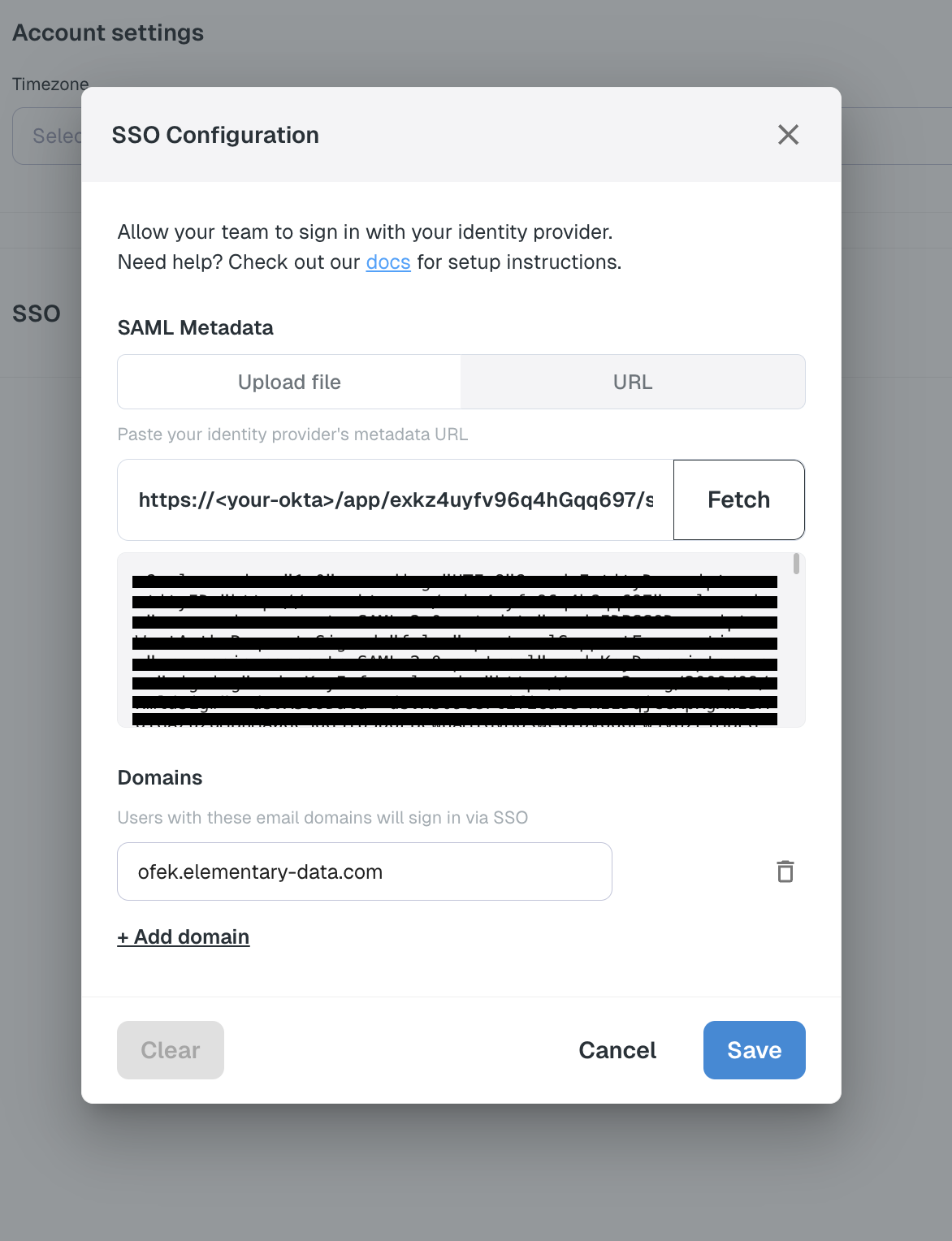
 * Fill in the form with the following details:
* SAML Metadata: Choose "Upload file", upload the Federation Metadata XML you downloaded.
* Domains: Add the domains you want to allow access to Elementary.
* Click on "Save" to save the configuration.
* Fill in the form with the following details:
* SAML Metadata: Choose "Upload file", upload the Federation Metadata XML you downloaded.
* Domains: Add the domains you want to allow access to Elementary.
* Click on "Save" to save the configuration.
 Make sure to verify that login works in an incognito window or with another user before logging out.
If it does not, disable the SSO configuration immediately and contact the Elementary team.
## Provisioning
Elementary supports user provisioning via SCIM to automate user management. If you want to enable automatic provisioning, follow these steps:
* Go to your account settings page in Elementary (Your avatar in the top right corner -> Account -> Settings)
* In the Provisioning section, click on "Configure"
* Choose "Azure AD", and click "Create" to create a new URL and token for provisioning
* DO NOT close this dialog until you have configured SCIM in Azure AD
* In the **Microsoft Entra portal**, go to **Enterprise Applications** and select the newly created SAML application.
* Navigate to **Provisioning** and click **Get Started**.
* Set the **Provisioning Mode** to **Automatic**.
* Configure the **Tenant URL** and **Secret Token** - *value from Elementary Provisioning section*
* Click **Test Connection** to validate the setup.
* Enable provisioning and save changes.
This setup ensures that users are automatically created, updated, and deactivated in Elementary based on their status in Microsoft Entra ID. You can always reach out if you need any help.
Make sure to verify that login works in an incognito window or with another user before logging out.
If it does not, disable the SSO configuration immediately and contact the Elementary team.
## Provisioning
Elementary supports user provisioning via SCIM to automate user management. If you want to enable automatic provisioning, follow these steps:
* Go to your account settings page in Elementary (Your avatar in the top right corner -> Account -> Settings)
* In the Provisioning section, click on "Configure"
* Choose "Azure AD", and click "Create" to create a new URL and token for provisioning
* DO NOT close this dialog until you have configured SCIM in Azure AD
* In the **Microsoft Entra portal**, go to **Enterprise Applications** and select the newly created SAML application.
* Navigate to **Provisioning** and click **Get Started**.
* Set the **Provisioning Mode** to **Automatic**.
* Configure the **Tenant URL** and **Secret Token** - *value from Elementary Provisioning section*
* Click **Test Connection** to validate the setup.
* Enable provisioning and save changes.
This setup ensures that users are automatically created, updated, and deactivated in Elementary based on their status in Microsoft Entra ID. You can always reach out if you need any help.