> ## Documentation Index
> Fetch the complete documentation index at: https://docs.elementary-data.com/llms.txt
> Use this file to discover all available pages before exploring further.
# Slack setup for Elementary CLI
Elementary Slack integration includes sending [Slack alerts](/oss/guides/alerts/send-slack-alerts) on failures in dbt tests and models, and the option to distribute the [data observability report](/oss/guides/generate-report-ui) as a message attachment.
## Token vs Webhook
There are two integration options: Token or Webhook.
Both methods let you receive alerts from Elementary, but there are several features that are only supported in one of the two.
Below is features support comparison table, to help you select the integration method.
If possible, Token is the preferred way. It allows more flexibility and
supports more features than Webhook.
| Slack integration | Elementary alerts | Elementary report | Multiple channels | Slack workflows |
| ----------------- | ----------------- | ----------------- | ----------------- | --------------- |
| Token | ✅ | ✅ | ✅ | ❌ |
| Webhook | ✅ | ❌ | ❌ | ✅ |
## Slack integration setup
First create a Slack app:
## 1. Create a Slack app
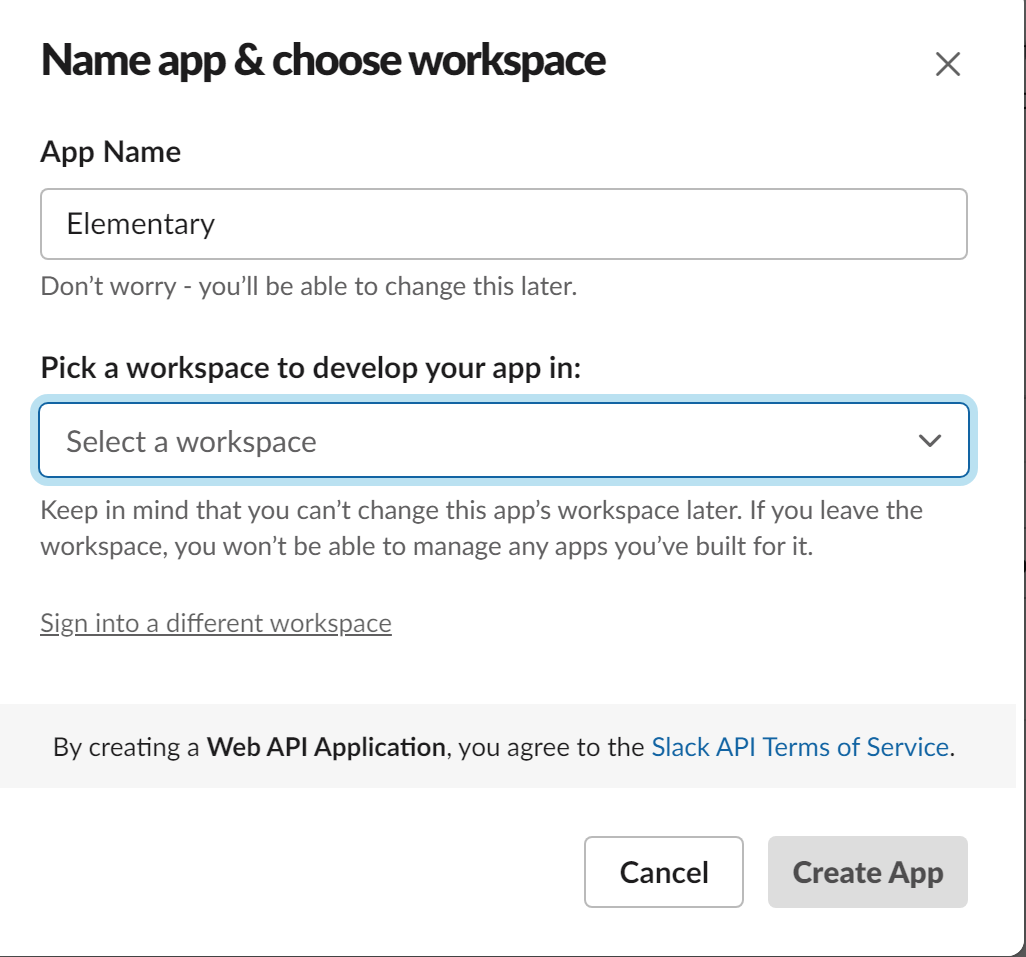
Go to the [Slack page to create apps](https://api.slack.com/apps?new_app=1) and create a new app (from scratch).
Call it "[Elementary](#slack-app-display)" and connect it to the workspace of your choice.
 ## 2. Optional - Slack app display
To change the display of the Elementary slack app, scroll down on the Slack app basic information page to the 'Display Information' section:
## 2. Optional - Slack app display
To change the display of the Elementary slack app, scroll down on the Slack app basic information page to the 'Display Information' section:
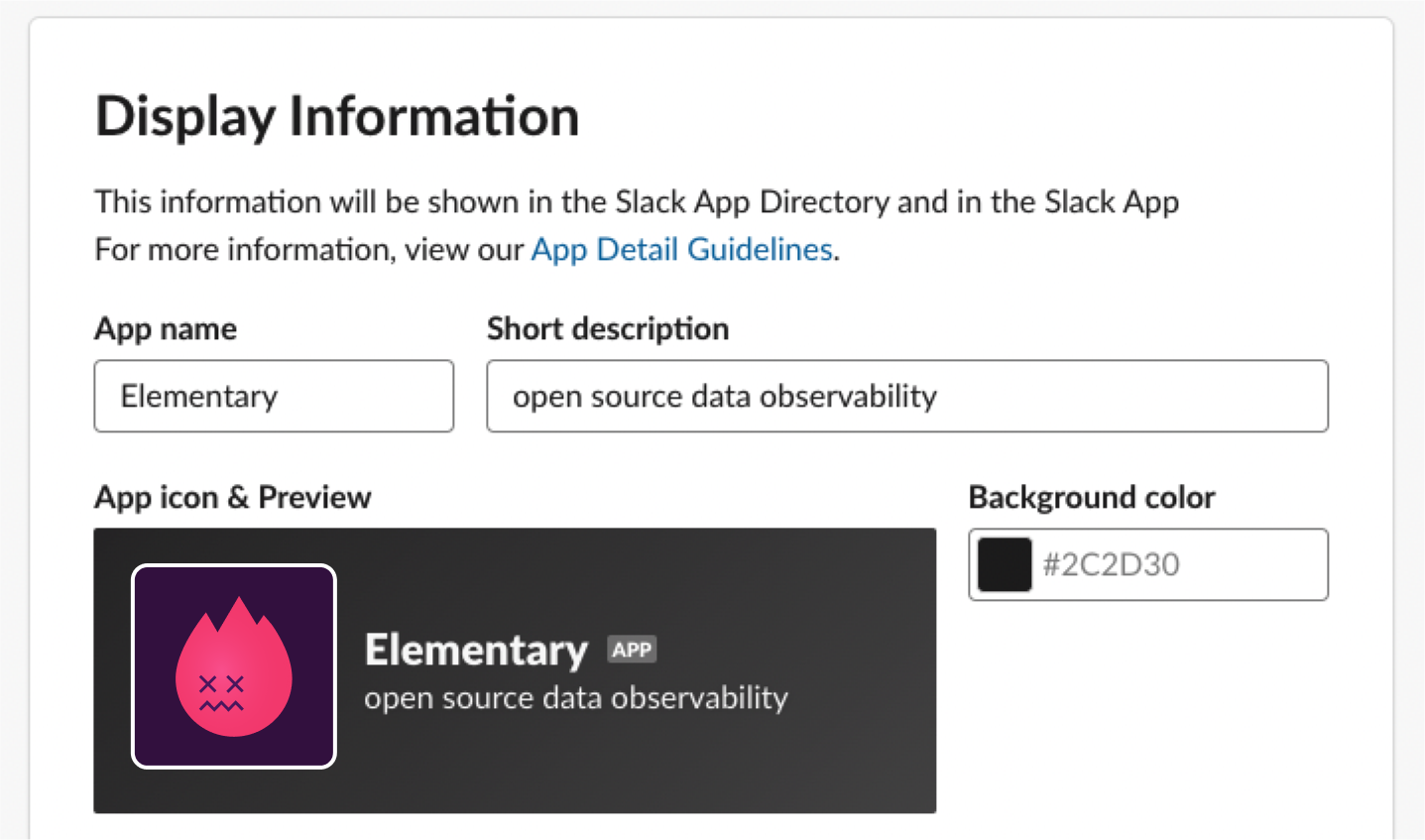 Here is the Elementary icon for your use (click to download):
 Based on the method you selected, create a [token or webhook](/oss/deployment-and-configuration/slack#token-vs-webhook):
## 1. Create a Slack token
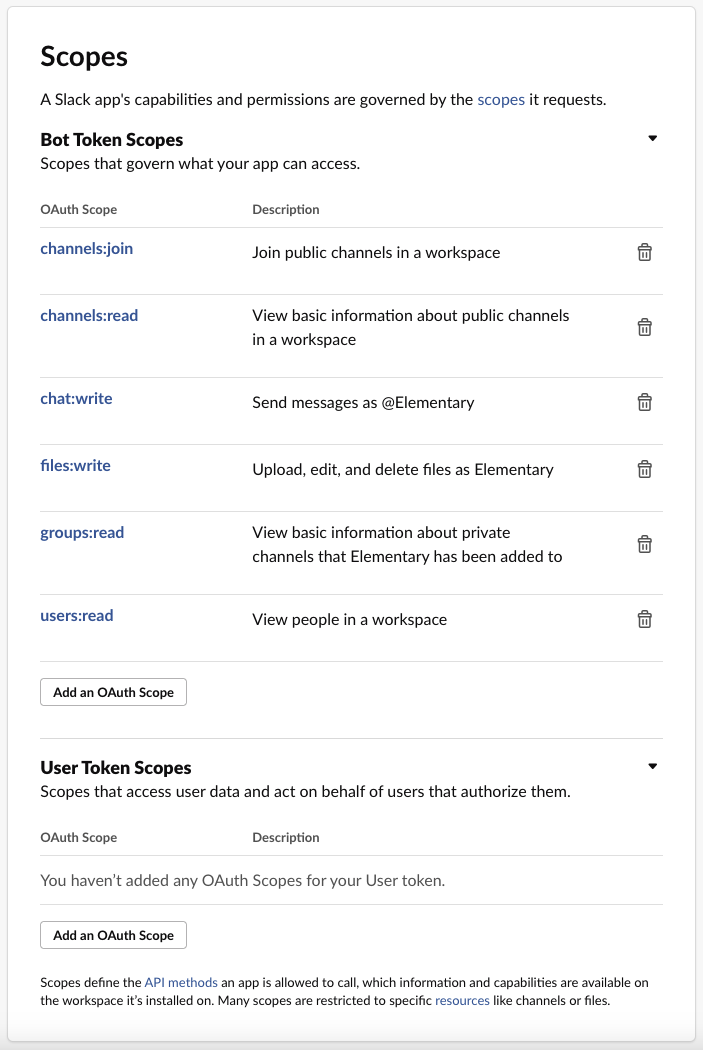
Go to the "OAauth & Permissions" page for your newly-created app, and add the following scopes under "Bot Token Scopes":
* `channels:join` - Join public channels in a workspace
* `channels:read` - View basic information about public channels in a workspace
* `chat:write` - Send messages as \
* `files:write` - Upload, edit, and delete files as \
* `users:read` - View people in a workspace
* `users:read.email` - View email addresses of people in a workspace
* `groups:read` - View basic information about private channels that your slack app has been added to
Based on the method you selected, create a [token or webhook](/oss/deployment-and-configuration/slack#token-vs-webhook):
## 1. Create a Slack token
Go to the "OAauth & Permissions" page for your newly-created app, and add the following scopes under "Bot Token Scopes":
* `channels:join` - Join public channels in a workspace
* `channels:read` - View basic information about public channels in a workspace
* `chat:write` - Send messages as \
* `files:write` - Upload, edit, and delete files as \
* `users:read` - View people in a workspace
* `users:read.email` - View email addresses of people in a workspace
* `groups:read` - View basic information about private channels that your slack app has been added to
 ## 2. Install app at your Workspace
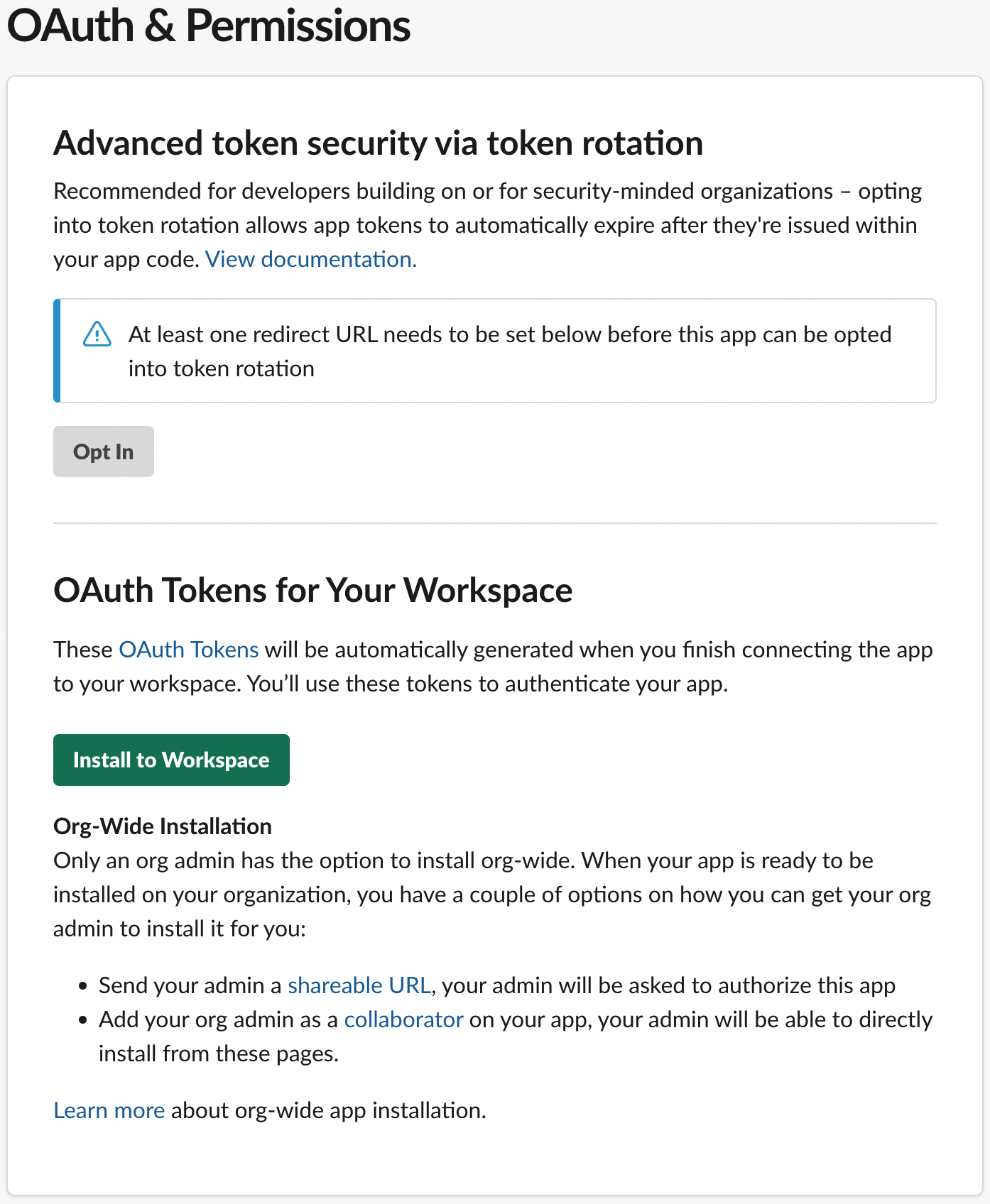
At the "OAuth & Permissions" page, press on "Install to Workspace" in order to generate Slack token:
## 2. Install app at your Workspace
At the "OAuth & Permissions" page, press on "Install to Workspace" in order to generate Slack token:
 ## Create a webhook
Go to the 'Incoming Webhooks' page for your newly-created app and toggle 'Activate Incoming Webhooks' to turn it on. Then click on 'Add New Webhook to Workspace':
## Create a webhook
Go to the 'Incoming Webhooks' page for your newly-created app and toggle 'Activate Incoming Webhooks' to turn it on. Then click on 'Add New Webhook to Workspace':
 Select the channel that the notifications will be posted to:
 Lastly, pass the token / webhook to the CLI as a param or in the `config.yml` file:
## Token:
Use the Slack token when you execute edr monitor using the option `-st, --slack-token` and `-ch, --slack-channel-name`:
```shell theme={null}
edr monitor --slack-token --slack-channel-name
```
## Webhook:
Use the webhook URL when you execute edr monitor using the option `-s, --slack-webhook`:
```shell theme={null}
edr monitor --slack-webhook
```
The CLI reads the Slack integration from a file, copy it into a file called config.yml.
Create it here: `HOME_DIR/.edr/config.yml`
Here is the format in the yml itself:
## Token:
```yml config.yml theme={null}
slack:
token:
channel_name:
group_alerts_by: <"table"> or <"alert">
# optional #
timezone:
```
## Webhook:
```yml config.yml theme={null}
slack:
notification_webhook:
group_alerts_by: <"table"> or <"alert">
# optional #
workflows: false
# optional #
timezone:
```
***
## Slack Workflows
If you use [Slack Workflows](https://slack.com/features/workflow-automation), add the following configuration to your `config.yml` under the slack tag:
```yml config.yml theme={null}
slack:
notification_webhook:
workflows: true
```
This flag `workflows: true` changes the format in which edr sends Slack alerts to the key-value pairs format supported by Slack Workflows.
The alert keys can be used to build a [Slack workflow](https://slack.com/help/articles/360053571454-Set-up-a-workflow-in-Slack).
The alert format is:
```json theme={null}
{
"alert_description": str,
"table_name": str,
"detected_at": str,
"type": str,
"description": str
}
```
***
Lastly, pass the token / webhook to the CLI as a param or in the `config.yml` file:
## Token:
Use the Slack token when you execute edr monitor using the option `-st, --slack-token` and `-ch, --slack-channel-name`:
```shell theme={null}
edr monitor --slack-token --slack-channel-name
```
## Webhook:
Use the webhook URL when you execute edr monitor using the option `-s, --slack-webhook`:
```shell theme={null}
edr monitor --slack-webhook
```
The CLI reads the Slack integration from a file, copy it into a file called config.yml.
Create it here: `HOME_DIR/.edr/config.yml`
Here is the format in the yml itself:
## Token:
```yml config.yml theme={null}
slack:
token:
channel_name:
group_alerts_by: <"table"> or <"alert">
# optional #
timezone:
```
## Webhook:
```yml config.yml theme={null}
slack:
notification_webhook:
group_alerts_by: <"table"> or <"alert">
# optional #
workflows: false
# optional #
timezone:
```
***
## Slack Workflows
If you use [Slack Workflows](https://slack.com/features/workflow-automation), add the following configuration to your `config.yml` under the slack tag:
```yml config.yml theme={null}
slack:
notification_webhook:
workflows: true
```
This flag `workflows: true` changes the format in which edr sends Slack alerts to the key-value pairs format supported by Slack Workflows.
The alert keys can be used to build a [Slack workflow](https://slack.com/help/articles/360053571454-Set-up-a-workflow-in-Slack).
The alert format is:
```json theme={null}
{
"alert_description": str,
"table_name": str,
"detected_at": str,
"type": str,
"description": str
}
```
***
