> ## Documentation Index
> Fetch the complete documentation index at: https://docs.elementary-data.com/llms.txt
> Use this file to discover all available pages before exploring further.
# Setup Teams alerts
**Before you start**
Before you can start using the alerts, make sure to [install the dbt package](/oss/quickstart/quickstart-cli-package), [configure a profile and install the CLI](/oss/quickstart/quickstart-cli).
This is **required for the alerts to work.**
Elementary sends alerts using Microsoft Teams Adaptive Cards format, which provides rich formatting and interactive capabilities. You can create a webhook URL using either Microsoft Teams Connectors (legacy, being deprecated) or Power Automate Workflows (recommended).
First create a Microsoft Teams team:
## Create a new Team
Go to the Microsoft Teams desktop app and create a new team.
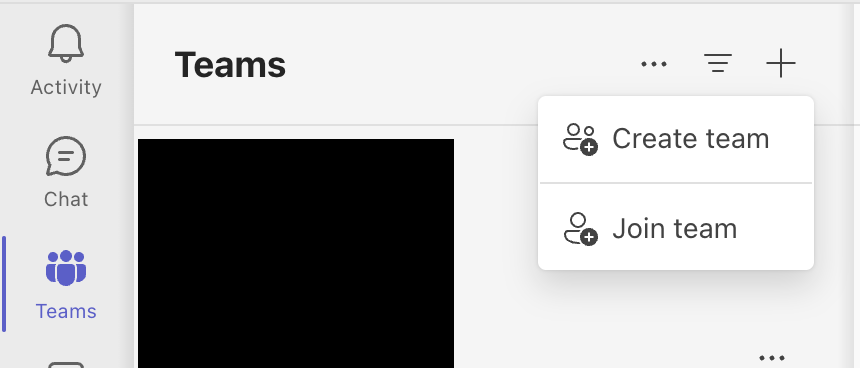 Create a team from from a template and use the `From Scratch` template.
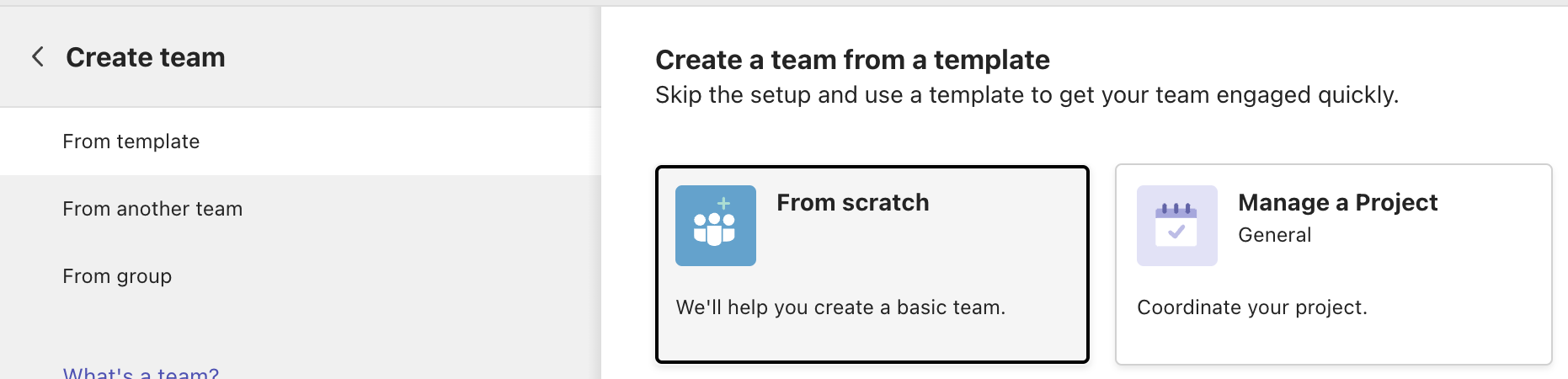 Choose `Public` as the kind of a team.
 Call it `Elementary` (or whatever you prefer) and connect it to the workspace of your choice.
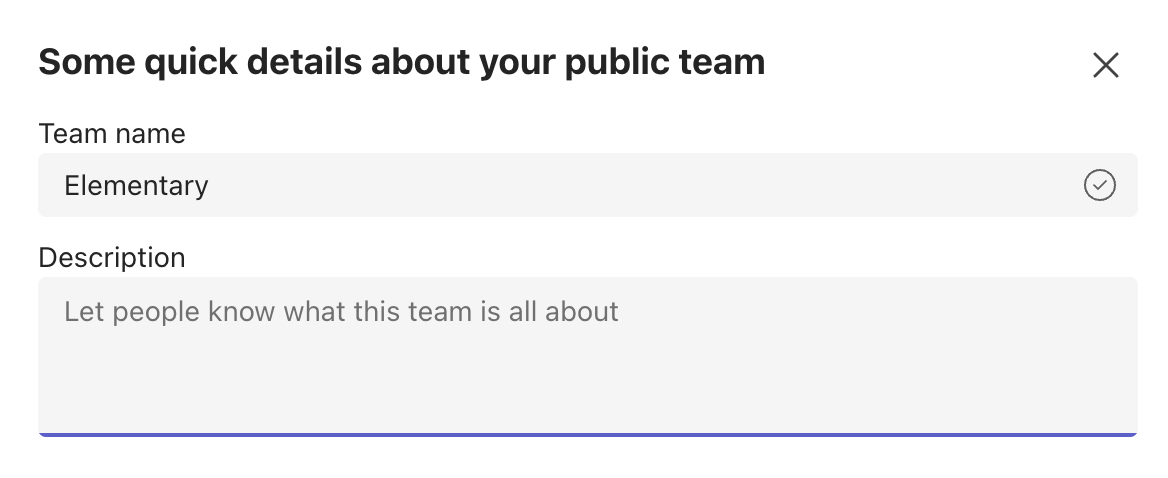 Now it's time to set up a webhook. You have two options for creating a webhook:
## Create a webhook using Connectors
**Note:** Microsoft 365 Connectors are set to be deprecated end of 2025. Consider using Power Automate Workflows (Option 2) for new integrations.
Go to a channel in your Team and choose `Manage channel`
Now it's time to set up a webhook. You have two options for creating a webhook:
## Create a webhook using Connectors
**Note:** Microsoft 365 Connectors are set to be deprecated end of 2025. Consider using Power Automate Workflows (Option 2) for new integrations.
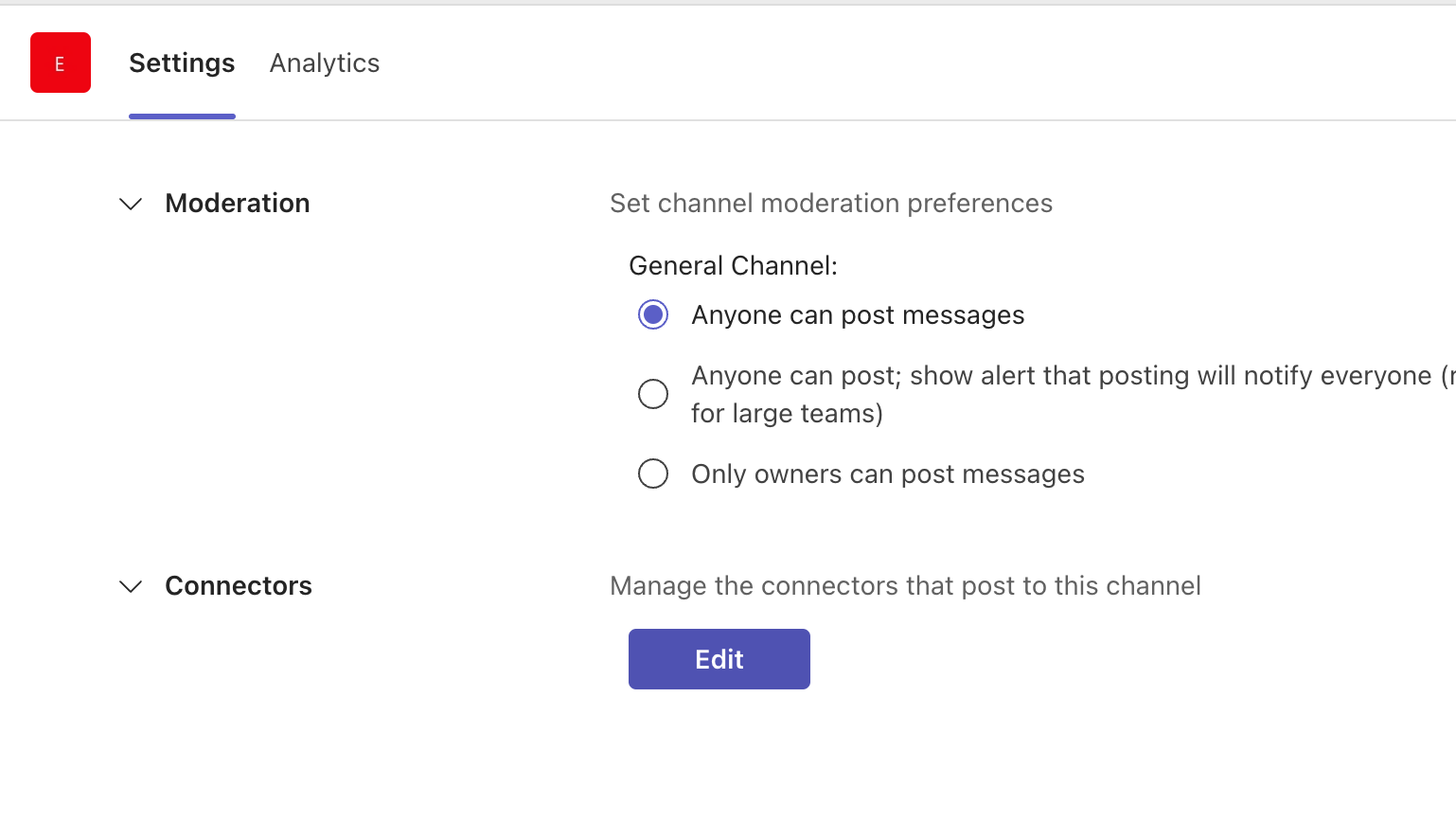
Go to a channel in your Team and choose `Manage channel`
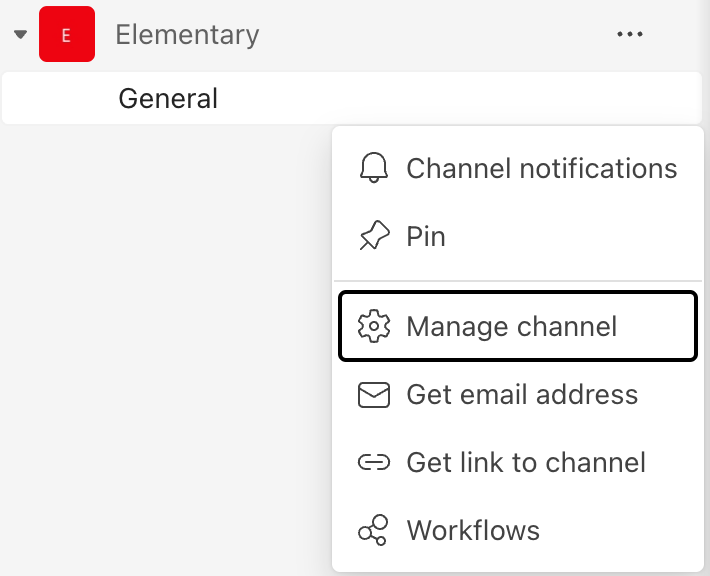 Choose `Edit` connectors.
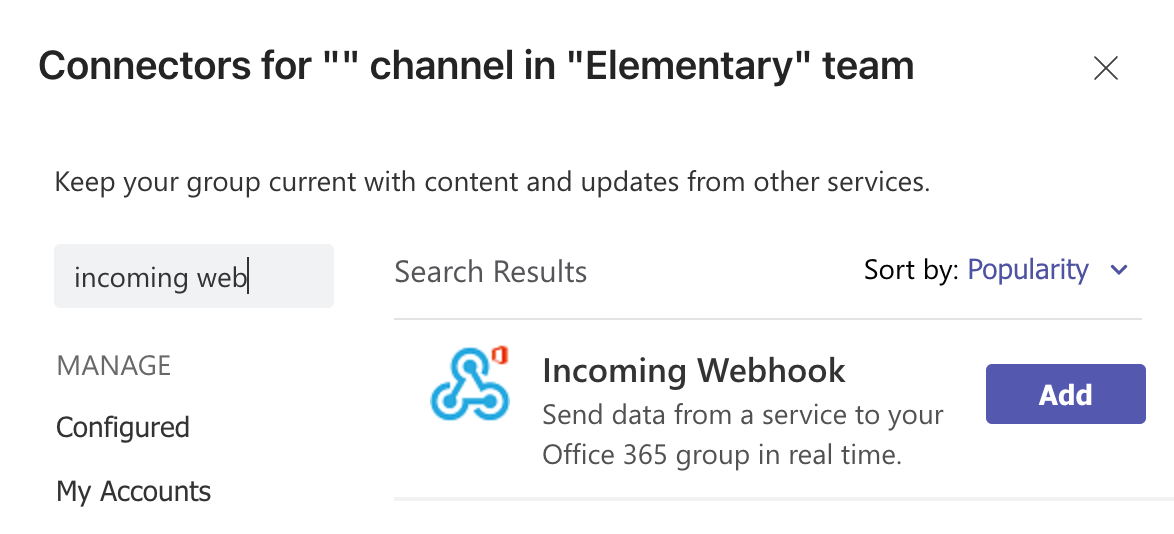
 Search for `Incoming webhook` and choose `Add`.
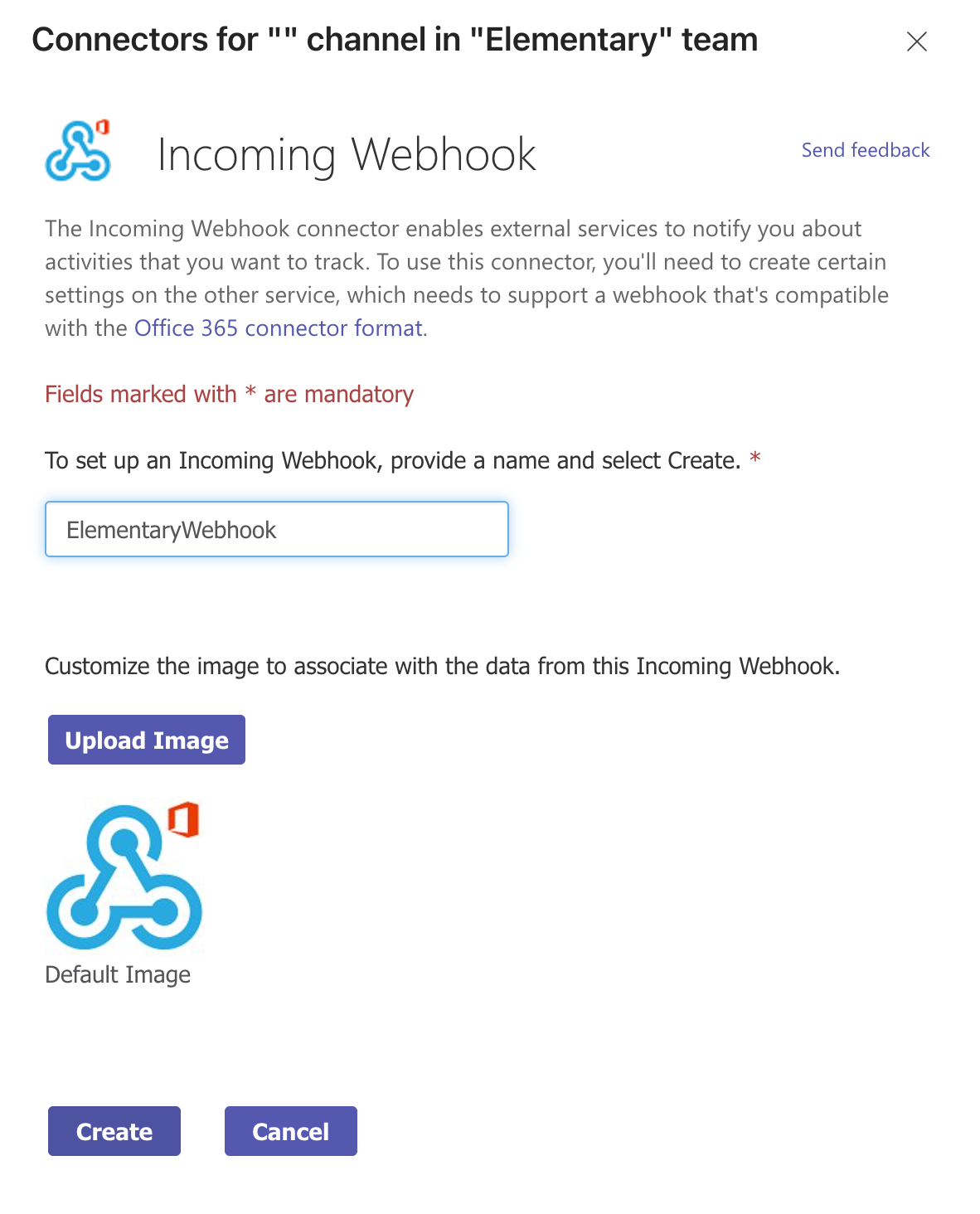
 Choose `Add` again and add name your webhook `ElementaryWebhook` (or whatever you prefer). And `Create` the webhook.
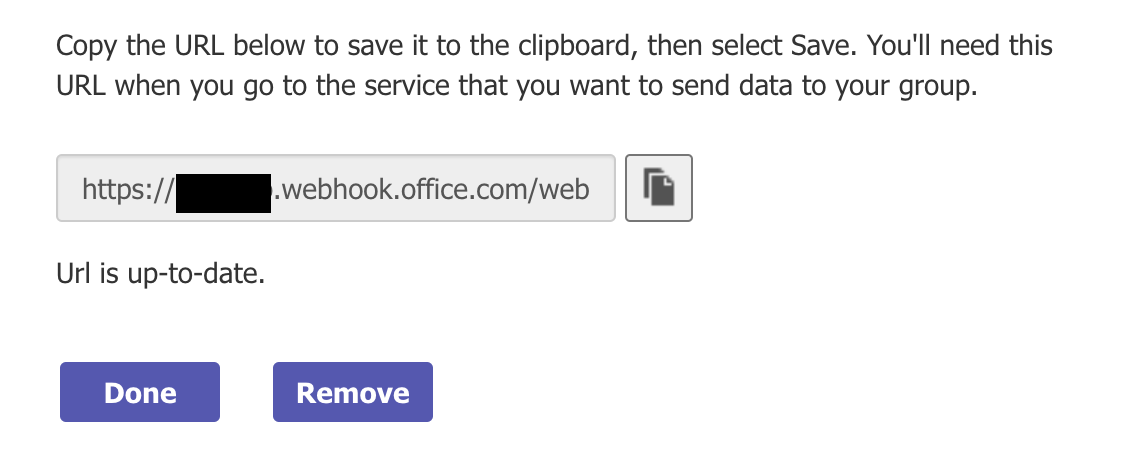
 Copy the URL of the webhook.
 ## Create a webhook using Power Automate
You can create a webhook using Power Automate in two ways:
### Method 1: Directly from Teams (Recommended)
1. Go to your Teams channel
2. Click the three dots (...) next to the channel name
3. Select `Workflows`
4. Choose the template "Post to channel when a webhook request is received"
5. Copy the webhook URL
### Method 2: From Power Automate Website
1. Go to [Power Automate](https://flow.microsoft.com)
2. Create a new instant cloud flow
3. Search for "When a HTTP request is received" as your trigger
4. In the flow, add a "Post adaptive card in a chat or channel" action
5. Configure the team and channel where you want to post
6. Save the flow and copy the HTTP POST URL
**Important Notes:**
* When using Power Automate Workflows, Elementary CLI cannot directly verify if messages were successfully delivered. You'll need to monitor your workflow runs in Power Automate to check for any delivery issues.
* Workflows can't post in private channels as a flow bot, but can post on behalf of a user
* Workflows can only be created in your default environment
Lastly, pass the webhook URL (from either method) to the CLI as a param or in the `config.yml` file:
## Webhook:
Use the webhook URL when you execute edr monitor using the option `-tw, --teams-webhook`:
```shell theme={null}
edr monitor --teams-webhook
```
The CLI reads the Teams integration from a file, copy it into a file called config.yml.
Create it here: `HOME_DIR/.edr/config.yml`
Here is the format in the yml itself:
## Webhook:
```yml config.yml theme={null}
teams:
teams_webhook:
```
## Execute the CLI
Make sure to run the following command after your dbt runs and tests:
```
edr monitor --teams-webhook --group-by [table | alert]
```
Or just `edr monitor` if you used `config.yml`.
***
## Alert on source freshness failures
*Not supported in dbt cloud*
To alert on source freshness, you will need to run `edr run-operation upload-source-freshness` right after each execution of `dbt source freshness`.
This operation will upload the results to a table, and the execution of `edr monitor` will send the actual alert.
* Note that `dbt source freshness` and `upload-source-freshness` needs to run from the same machine.
* Note that `upload-source-freshness` requires passing `--project-dir` argument.
## Continuous alerting
In order to monitor continuously, use your orchestrator to execute it regularly (we recommend running it right after
your dbt job ends to monitor the latest data updates).
Read more about how to deploy [Elementary in production](/oss/deployment-and-configuration/elementary-in-production).
If you need help or wish to consult on this, reach out to us
on [Slack](https://elementary-data.com/community).
## Create a webhook using Power Automate
You can create a webhook using Power Automate in two ways:
### Method 1: Directly from Teams (Recommended)
1. Go to your Teams channel
2. Click the three dots (...) next to the channel name
3. Select `Workflows`
4. Choose the template "Post to channel when a webhook request is received"
5. Copy the webhook URL
### Method 2: From Power Automate Website
1. Go to [Power Automate](https://flow.microsoft.com)
2. Create a new instant cloud flow
3. Search for "When a HTTP request is received" as your trigger
4. In the flow, add a "Post adaptive card in a chat or channel" action
5. Configure the team and channel where you want to post
6. Save the flow and copy the HTTP POST URL
**Important Notes:**
* When using Power Automate Workflows, Elementary CLI cannot directly verify if messages were successfully delivered. You'll need to monitor your workflow runs in Power Automate to check for any delivery issues.
* Workflows can't post in private channels as a flow bot, but can post on behalf of a user
* Workflows can only be created in your default environment
Lastly, pass the webhook URL (from either method) to the CLI as a param or in the `config.yml` file:
## Webhook:
Use the webhook URL when you execute edr monitor using the option `-tw, --teams-webhook`:
```shell theme={null}
edr monitor --teams-webhook
```
The CLI reads the Teams integration from a file, copy it into a file called config.yml.
Create it here: `HOME_DIR/.edr/config.yml`
Here is the format in the yml itself:
## Webhook:
```yml config.yml theme={null}
teams:
teams_webhook:
```
## Execute the CLI
Make sure to run the following command after your dbt runs and tests:
```
edr monitor --teams-webhook --group-by [table | alert]
```
Or just `edr monitor` if you used `config.yml`.
***
## Alert on source freshness failures
*Not supported in dbt cloud*
To alert on source freshness, you will need to run `edr run-operation upload-source-freshness` right after each execution of `dbt source freshness`.
This operation will upload the results to a table, and the execution of `edr monitor` will send the actual alert.
* Note that `dbt source freshness` and `upload-source-freshness` needs to run from the same machine.
* Note that `upload-source-freshness` requires passing `--project-dir` argument.
## Continuous alerting
In order to monitor continuously, use your orchestrator to execute it regularly (we recommend running it right after
your dbt job ends to monitor the latest data updates).
Read more about how to deploy [Elementary in production](/oss/deployment-and-configuration/elementary-in-production).
If you need help or wish to consult on this, reach out to us
on [Slack](https://elementary-data.com/community).