The Logs feature allows workspace admins to track and export both user actions and system-level events across the platform. This includes user configuration changes, data synchronization events, and alert deliveries. This feature provides visibility into workspace activity and helps support audit readiness, team coordination, operational monitoring, and troubleshooting.

User Activity Logs

User activity logs track changes made by users across the system, including actions such as creating, editing, or deleting tests, monitors, metadata, and other configurations.

What’s Included

The user activity logs capture a wide range of user actions across your workspace, including:
  • User login and logout events
  • Failed login attempts (when applicable)
  • Creation, modification, or deletion of configuration, including:
    • Adding, editing, or deleting tests
    • Adding, editing, deleting, or archiving alert rules
    • Acknowledging, resolving, or assigning incidents
    • Adding, editing, or deleting metadata (owners, descriptions, tags, critical assets)
    • Adding, editing, or deleting integrations
    • Sending team member invites
    • Changing user roles

System Logs

System logs track system-level events and operations, including data synchronization events and alert deliveries that help with monitoring system operations and troubleshooting.


What’s Included

The system logs capture system-level events and operations across your workspace, including:
  • Data synchronization events, including:
    • Beginning and end of synchronization with dbt
    • Beginning and end of data warehouse (DWH) synchronization
    • Beginning and end of business intelligence (BI) synchronization
  • Alert deliveries - When alerts are sent to configured destinations

How to Access Logs

Once enabled for your account, access the logs:
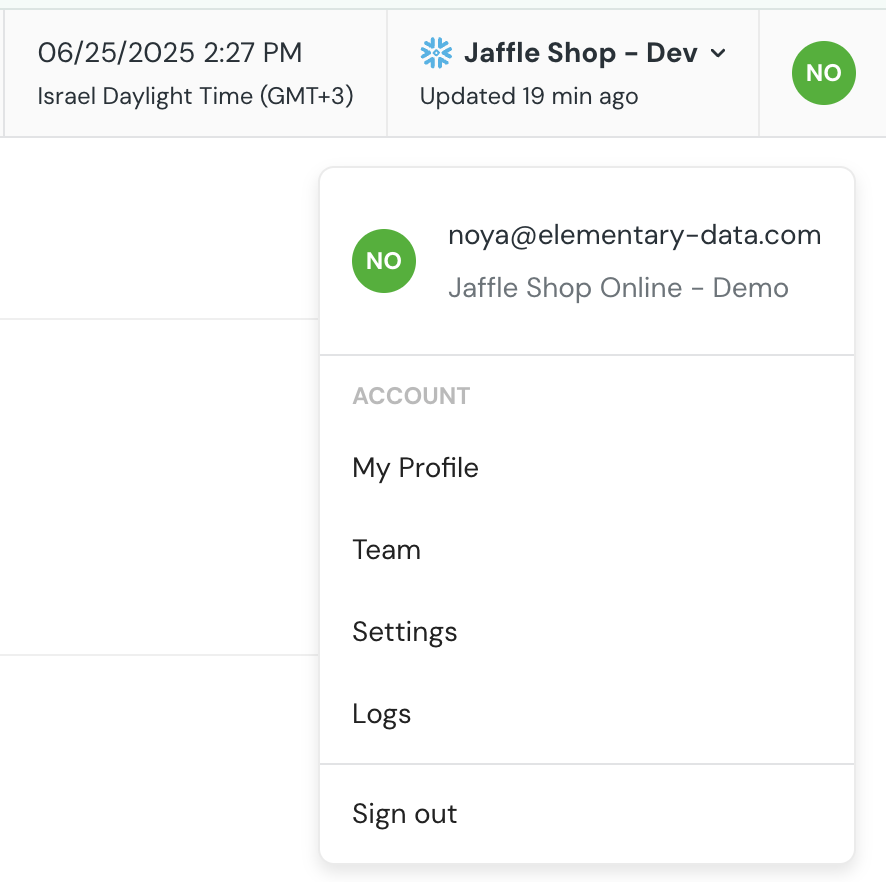
  1. Click on your account name in the top-right corner of the UI
  2. Open the dropdown menu
  3. Select Logs
  4. Choose User Activity Logs or System Logs from the log type selector
  5. Select the number of days to look back
  6. Click Export to download the log as a CSV file
You can open the CSV in any spreadsheet tool to review and filter the activity as needed.