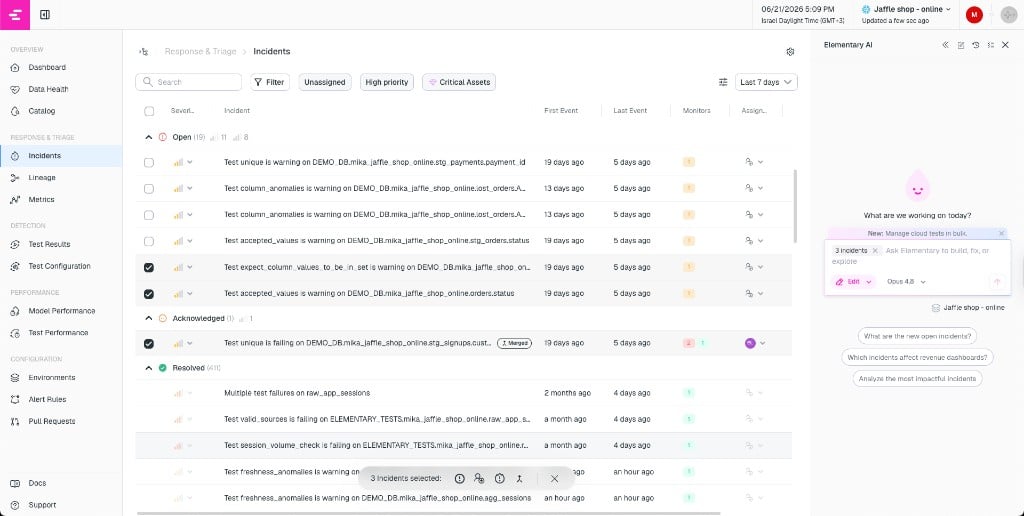
The Incidents page is designed to help your team stay on top of open incidents and collaborate on resolving them. It provides a comprehensive overview of all current and past incidents, where users can view the status, prioritize, assign, and resolve incidents.
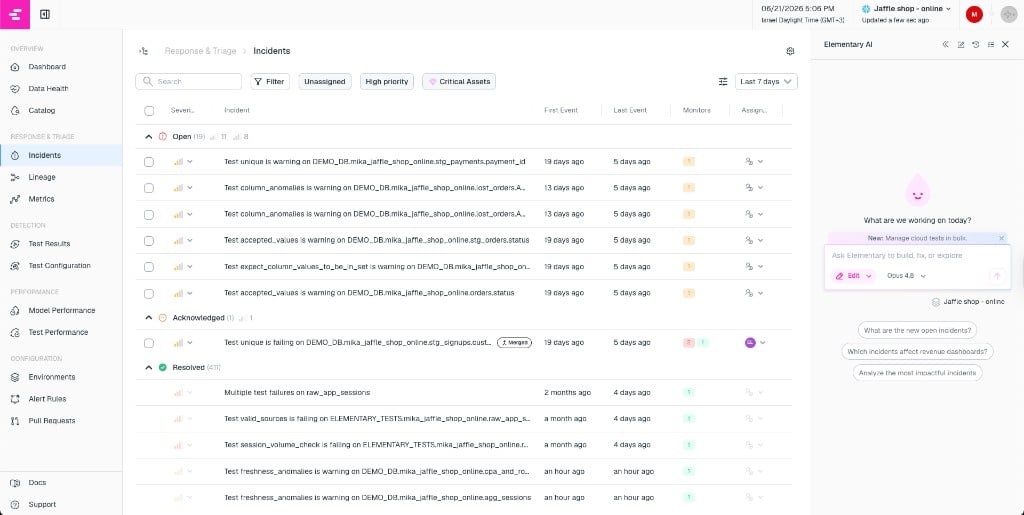
Incidents are organized in a grouped table with three sections: Open, Acknowledged, and Resolved. Each group header shows a count of incidents and a breakdown by severity.
Incidents list grouped by Open, Acknowledged, and Resolved
The table columns include:
Severity — editable inline via dropdown
Incident — title, with a “Merged” chip for incidents containing multiple monitors
First Event / Last Event — when the incident started and when the last failure occurred
Monitors — status chips showing pass/fail/warning counts
Assignee — editable inline, searchable dropdown
Status — editable inline
Columns can be toggled on or off via the column menu. You can sort by severity, first event, last event, monitor count, or assignee.
The top of the drawer shows the incident title, metadata chips (assignee, status, severity), duration, and the number of failing monitors. You can also:
Edit the title
Add or edit a summary
Link or create tickets (Jira, Linear, ServiceNow, etc.)
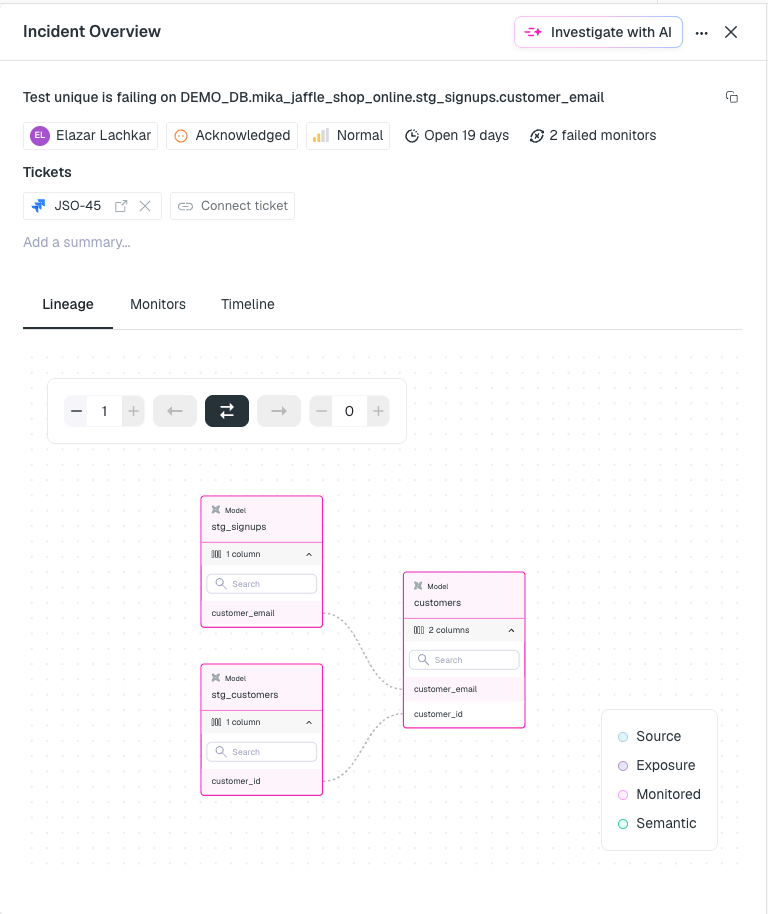
An interactive lineage graph showing the upstream and downstream assets related to all monitors in the incident. Use the hop controls to expand or collapse the graph.
Incident detail — Lineage tab
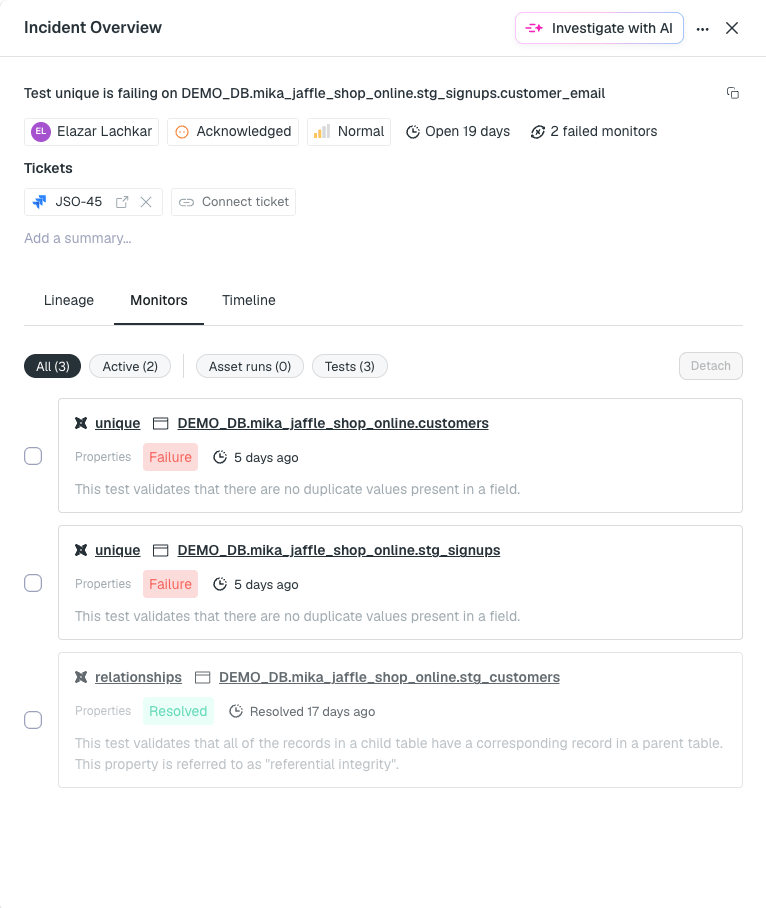
A list of monitor cards — each showing the test name, asset, status, owners, and timestamps.When an incident contains multiple monitors, you can select monitors and click Detach to split them into separate incidents.
Incident detail — Monitors tab
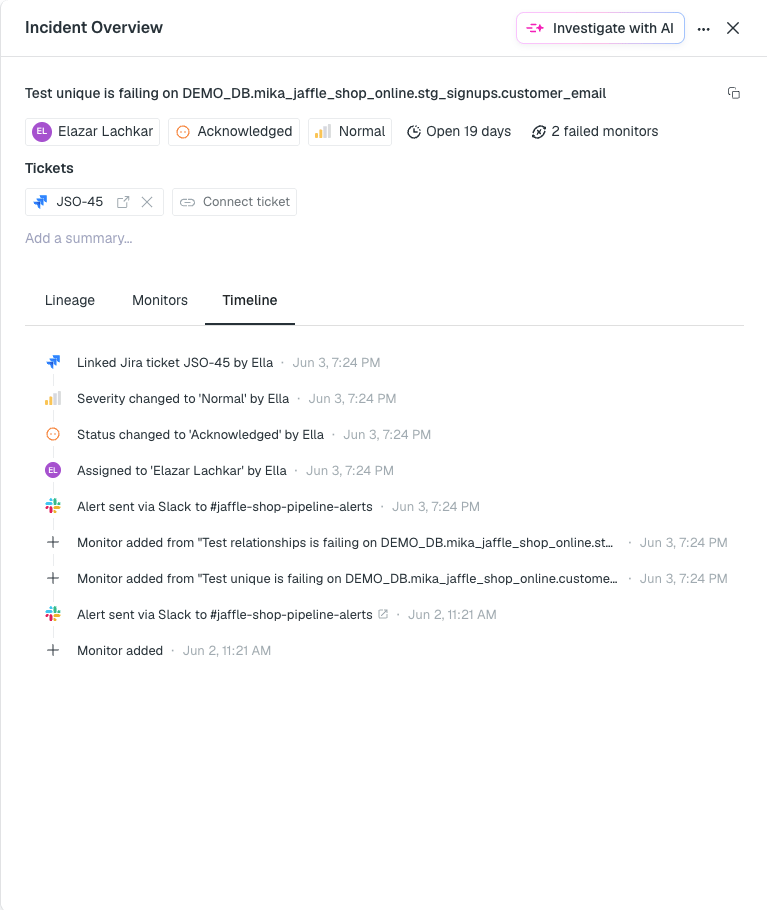
A chronological feed of all events in the incident’s history: status and severity changes, alerts sent (with destination links), monitors added or removed, tickets linked, and more.
Create a ticket in your connected ticketing tool (Jira, Linear, ServiceNow)
Attach an existing ticket by ID or URL
Detach a ticket from the incident
When a ticket is linked, its status is shown in the drawer. If close_linked_ticket_on_incident_resolve is enabled, resolving the incident will also close the linked ticket.
Click the gear icon on the incidents page to access incident settings. Currently this includes auto-merge rules for automatically grouping related incidents.