

Manual merge
To merge incidents manually:- In the incidents list, select two or more open or acknowledged incidents using the checkboxes.
- Click Merge in the floating action menu that appears at the bottom of the screen.
- On the merge page, choose which incident should be the primary — this is the one that survives with all monitors combined.
- Edit the merged incident’s title and summary if needed.
- Click Merge Incidents to confirm.
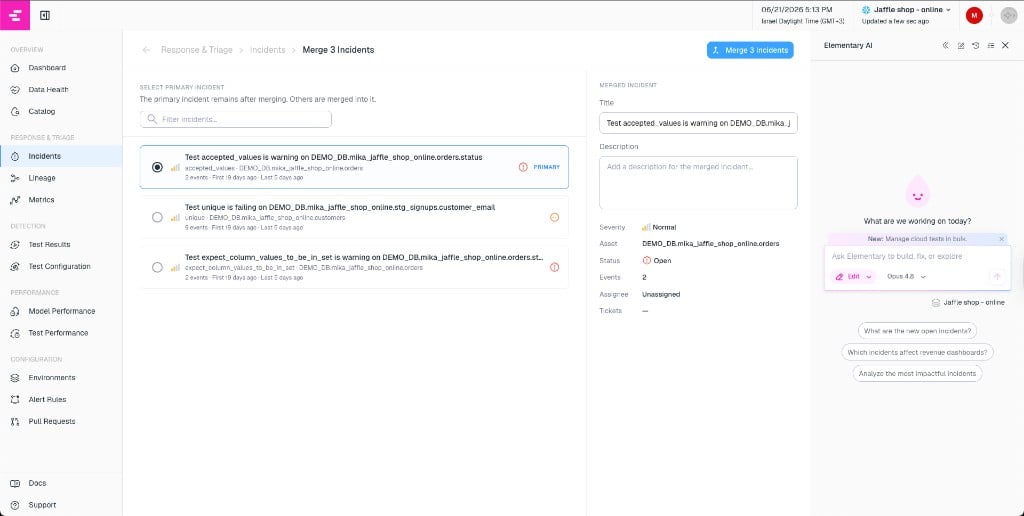
Merge page — select primary incident and edit title and description
- The primary incident stays open and inherits all monitors from the merged incidents.
- The merged incidents are resolved with reason “Merged” and hidden from the main list.
- A “Merged” chip appears on the primary incident in the list view when it contains multiple monitors.
Auto-merge rules
Auto-merge rules let Elementary automatically group related failures into incidents without manual intervention. Each rule can be enabled or disabled independently for an environment. To configure auto-merge rules, click the gear icon on the incidents page to open the settings menu.Asset run errors
When enabled, asset runs that fail with the same error can be grouped into one incident, even when there are no freshness issues. For example, model runs that fail because of the same missing table can share an incident. Related freshness issues can join that incident when they open within one day of an active asset run failure and the affected assets are connected through lineage. If a freshness issue is equally close to multiple eligible incidents, it stays separate.Tests connected by lineage
When enabled, failed tests of the same type on connected upstream or downstream assets and columns can be grouped into one incident.Similar test errors
When enabled, failed tests can be grouped when they share the same error, such as a missing table, or have similar, informative error messages. Generic messages alone do not cause tests to be grouped. This rule applies to test errors; asset run errors use the Asset run errors rule.Freshness issues
When enabled, freshness incidents affecting the same upstream source are automatically merged into a single incident. This is useful when a source goes stale and causes freshness failures across many downstream tables — instead of creating a separate incident for each table, they are grouped together. The rule requires at least two freshness failures from the same source within a one-day window before merging them.AI agent-assisted merge
The Triage & Resolution Agent can investigate multiple open incidents, identify shared root causes, and propose merging them. When the agent suggests a merge:- A merge plan appears in the chat with the selected incidents and a proposed primary.
- Review the plan and click Confirm to proceed.
- You are taken to the merge page with everything pre-filled, where you can make final edits before merging.
Splitting incidents (undo a merge)
If monitors were incorrectly merged, you can split them back out:- Open the merged incident and go to the Monitors tab.
- Select the monitors you want to detach using the checkboxes.
- Click Detach and confirm.