

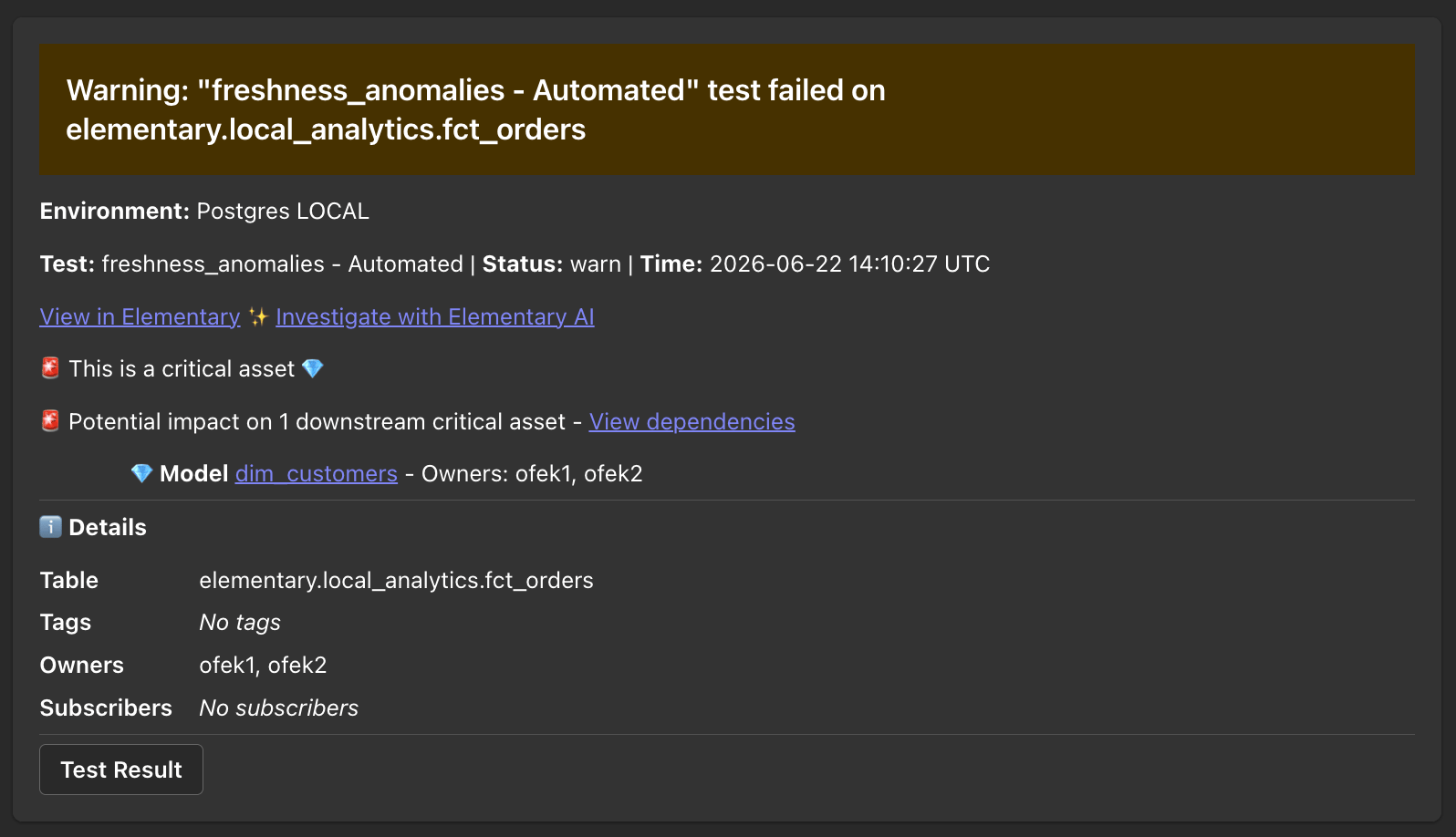
Connecting the Microsoft Teams app
1
Install the Elementary app in Microsoft Teams
Install the Elementary app from the Microsoft Teams App Store
and add it to the team where you want to receive alerts.
2
Connect your Teams workspace to Elementary
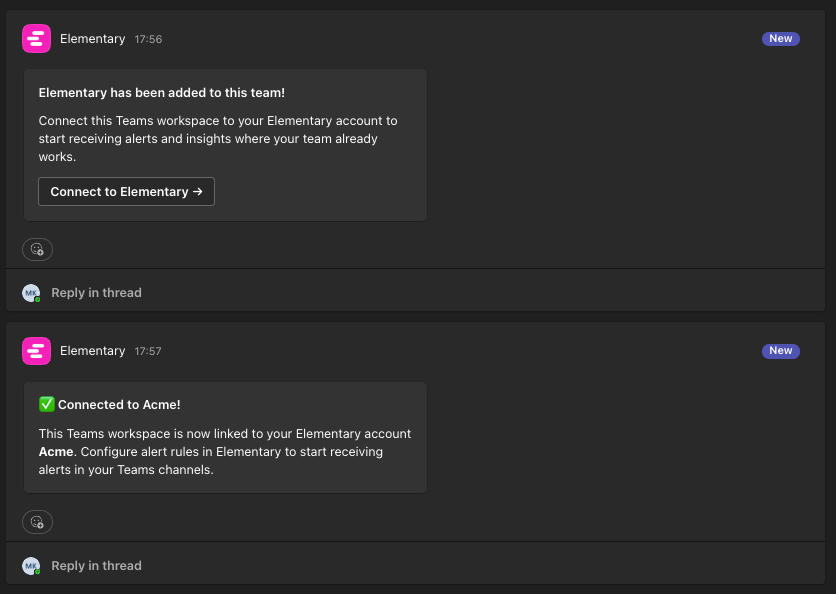
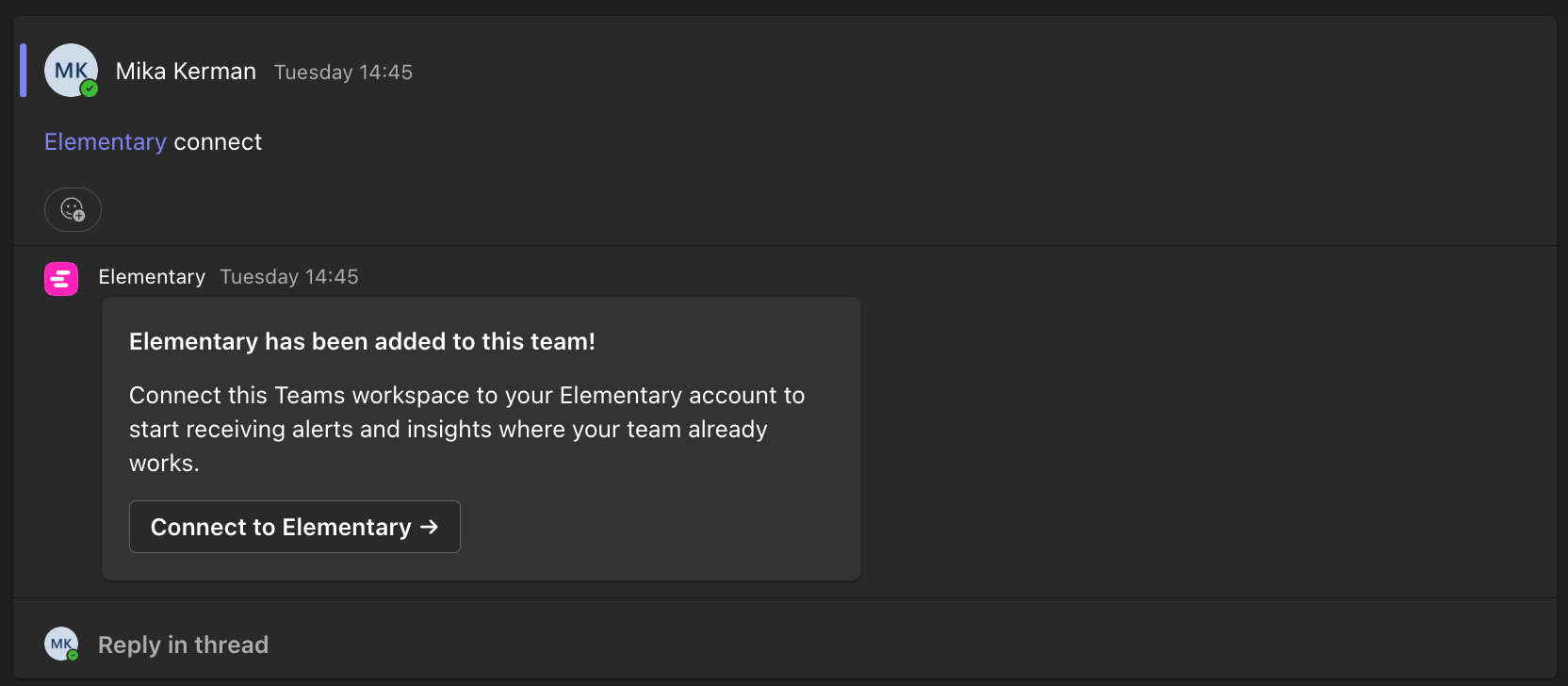
Once the bot is installed in a team, you should see this card.
Click Connect to Elementary to link this workspace to your
Elementary account.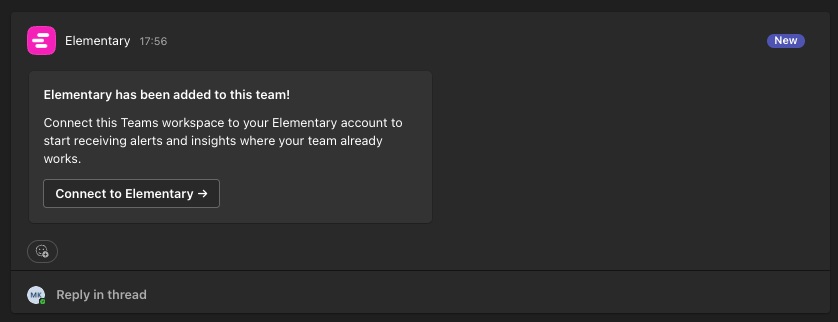
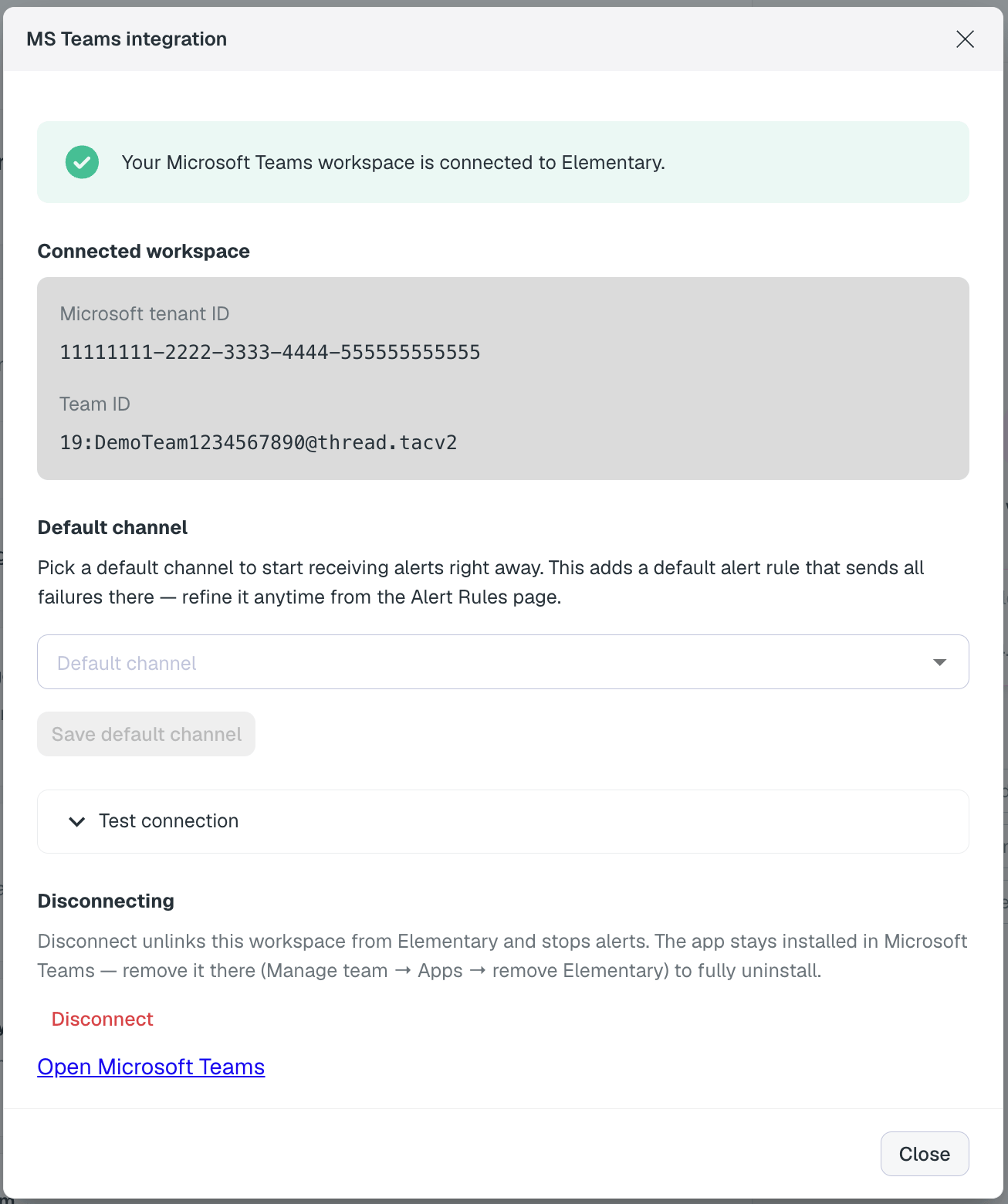
Setting a default channel automatically adds a default
alert rule that sends all
failures to that channel. Alerts on warnings are not sent by default — to
refine this, go to the
Alert Rules page.3
Route alerts to channels
Use alert rules to control
which alerts go to which channels — for example, routing test failures to
one channel and freshness issues to another.
Bot commands
In Microsoft Teams, mention the bot in any channel it’s installed in:@Elementary help— what Elementary can do and how to get started.
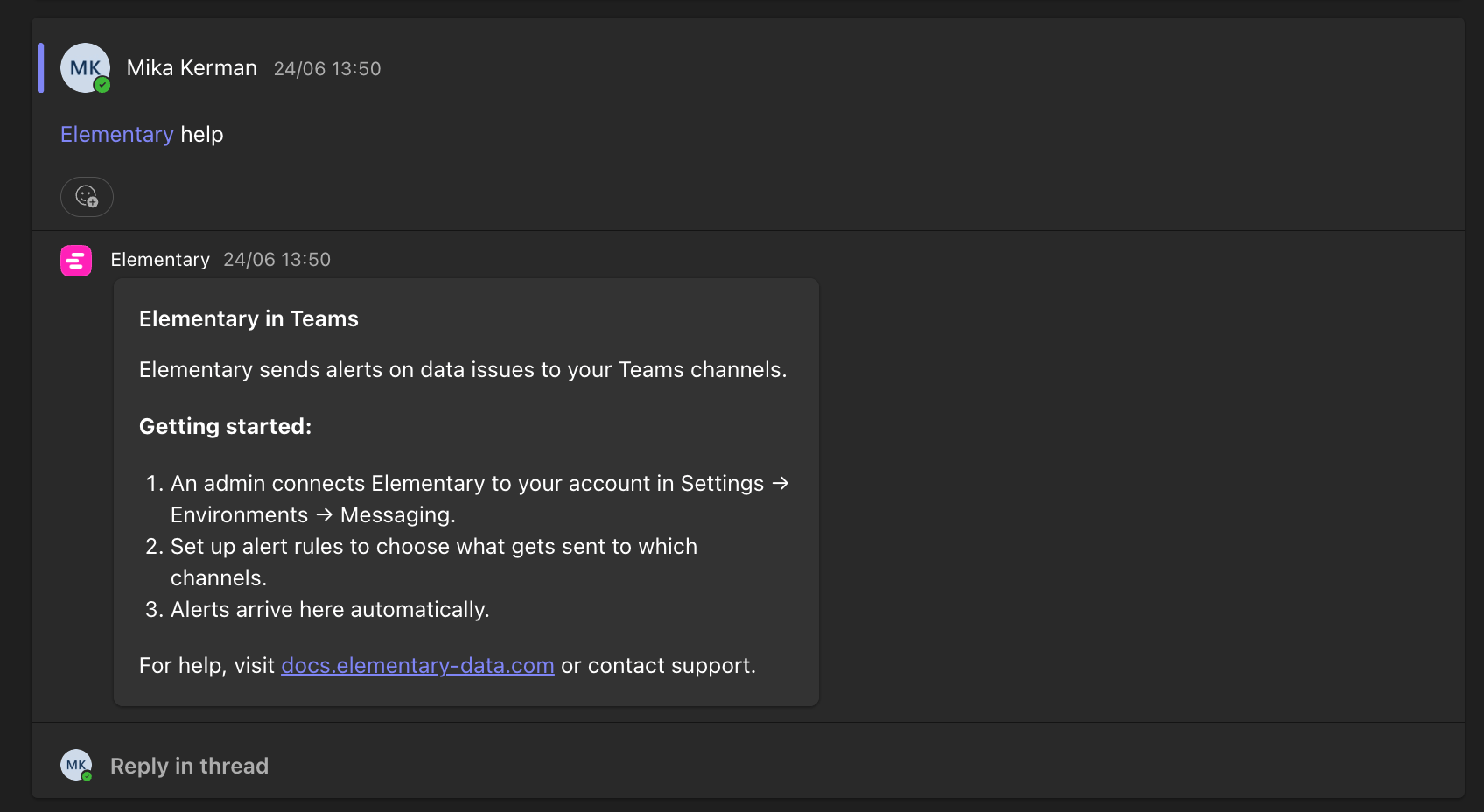
@Elementary connect— a fresh link to connect the team to your Elementary account.
Supported channels
The app posts to standard channels in the team it’s installed in. Private and shared channels are not supported.Disconnecting
You can disconnect from either side:- From Elementary — go to
Environments→Connect messaging app, open the Microsoft Teams App menu, and choose Disconnect. This unlinks the workspace from your Elementary account and stops alerts. The app stays installed in Teams — remove it there too if you want to fully uninstall. - In Microsoft Teams — remove the Elementary app from the team
(
Manage team→Apps→ remove Elementary). This uninstalls the app, and the integration then shows as disconnected in Elementary.
@Elementary connect in the channel.
Each Teams team can be connected to a single Elementary account. If a team is
already connected to a different account, connecting it again is rejected.